TABLE OF CONTENTS
- Instructions for all other browsers except for Safari:
- Mac OS instructions for Safari:
- Instructions for Safari on your iPhone / iPad:
If your local tournament search is showing tournaments that are far from your actual local area, it usually means your browser’s location settings need to be refreshed. Instructions for Safari are found below. Here’s how to fix it for other browsers:
Instructions for all other browsers except for Safari:
1. Check Your Location Permission
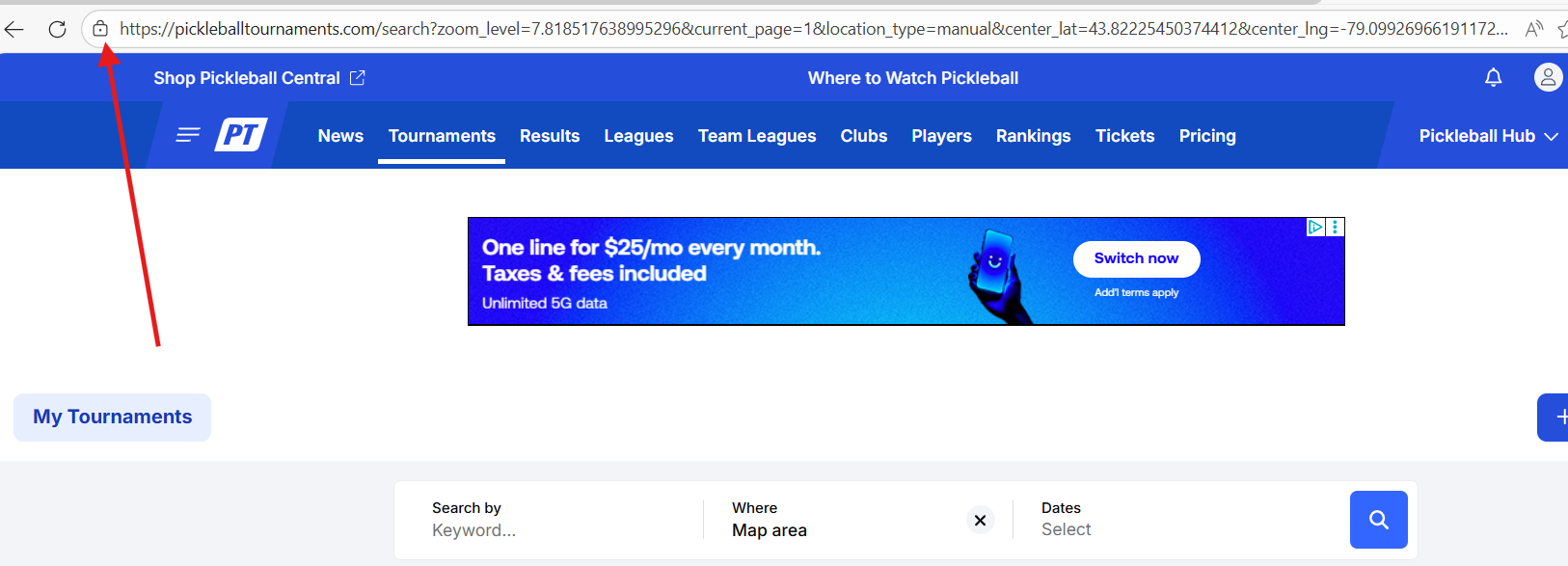
Look for the lock icon next to the website address in your browser.
Click the lock icon to open the site settings.
2. Update Your Location Setting
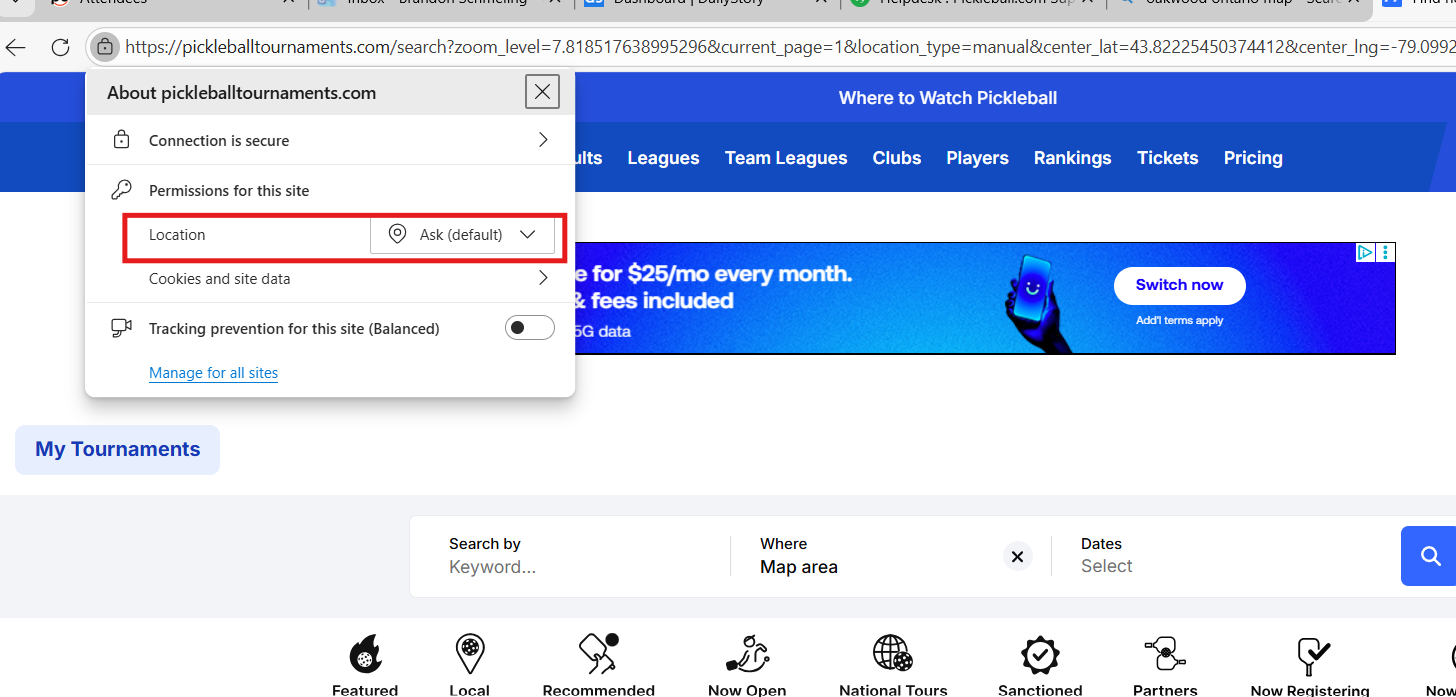
Find the Location section in the menu that appears.
If it says Allow, your browser may have locked your location previously.
Change it to Ask. This will make your browser ask for permission to share your location every time you visit the site.
3. Refresh the Page
After changing your location setting, refresh the page.
When prompted, choose Allow so the site can access your current location.
4. Try Searching Again
Go back to the local tournament search.
The results should now reflect tournaments near your current location.
Tip: If you still see incorrect results, make sure your device’s location services are turned on and working properly.
Mac OS instructions for Safari:
You'll need to make sure your location services is turned on for your computer first:
1. Go to the Apple Menu > System Settings > Privacy & Security > Location Services
2. Make sure location services is turned on.
3. Then, we'll need to adjust website preferences:
In Safari, go to Settings > Websites > Location and configure settings for specific websites
Instructions for Safari on your iPhone / iPad:
- Location services via Settings:
- Open Settings on your iPhone.
- Tap Privacy & Security.
- Tap Location Services and ensure the toggle is turned on.
- Scroll down to find and tap Safari Websites.
- Select While Using the App to allow access.
- Fixing Via Safari App Settings:
- Open Settings.
- Scroll down and tap Safari.
- Tap Location (under settings for websites).
- Choose Allow or Ask.
- Fixing "Denied" Permissions:
If you previously denied access, go to the specific website in Safari, tap the aA (or website settings icon) in the address bar, tap Website Settings, and change the location option.
- Precise Location: For better accuracy, toggle on Precise Location within the Safari location settings.
- Troubleshooting: If the option is greyed out, check Settings > Screen Time > Content & Privacy Restrictions and ensure "Location Services" is allowed.
Was this article helpful?
That’s Great!
Thank you for your feedback
Sorry! We couldn't be helpful
Thank you for your feedback
Feedback sent
We appreciate your effort and will try to fix the article