TABLE OF CONTENTS
- What is COPPA?
- Before you start
- Quick steps to create the minor’s account
- After the account is created — managing the child’s profile
- Common questions & troubleshooting
- Next steps
- If you have an already-existing minor account:
- Before you begin
- Step 1 — Start from the minor's account
- Step 2 — Parent/guardian accepts the management request
- Step 3 — Complete the consent and accept management
- Step 4 — Notifications and impersonation
- Step 5 — Information protection and remaining waivers
- Troubleshooting and tips
- Quick checklist
- Frequently Asked Questions
- 1. Do I need a separate email address for my child’s account?
- 2. Can I manage my child’s account using my own profile?
- 3. Who receives match start time emails?
- 4. Will parents also get copies of scores?
- 5. Will parents also get a copy of start time notifications?
- 6. Will parents receive receipts?
- 7. Can both parents/guardians manage the same child account?
- 8. Will the minor be notified when an adult is added?
- 9. Is impersonation logged?
Pickleball.com is in the process of implementing Parent/Guardian management process to meet the Child Online Privacy Protection Rule (COPPA) requirements. As part of this process, every account under the age of 17 will need to be attached to a parent or guardian account in the Pickleball.com system.
What is COPPA?
COPPA imposes certain requirements on operators of websites or online services directed to children under 18 years of age, and on operators of other websites or online services that have actual knowledge that they are collecting personal information online from a minor. While every country has their own minimum age, pickleball.com is a global service provider, so we are requiring every account under 17 years of age to be managed by a parent/guardian to meet every country's requirement.
This help document walks a parent or guardian through phase one of setting up a Pickleball.com profile for a child under 17. It is concise, step-based, and highlights the key items you’ll encounter during the process, including media consent, verification, and how to manage the account afterward.
Before you start
- Have the child’s email address ready (required).
- Decide whether you’ll use the child’s phone number or the parent/guardian phone number for contact.
- Be prepared to sign the media release and consent form on behalf of the minor.
- Sign in to your own Pickleball.com account first — you will be creating and managing the child’s account from there.
Quick steps to create the minor’s account
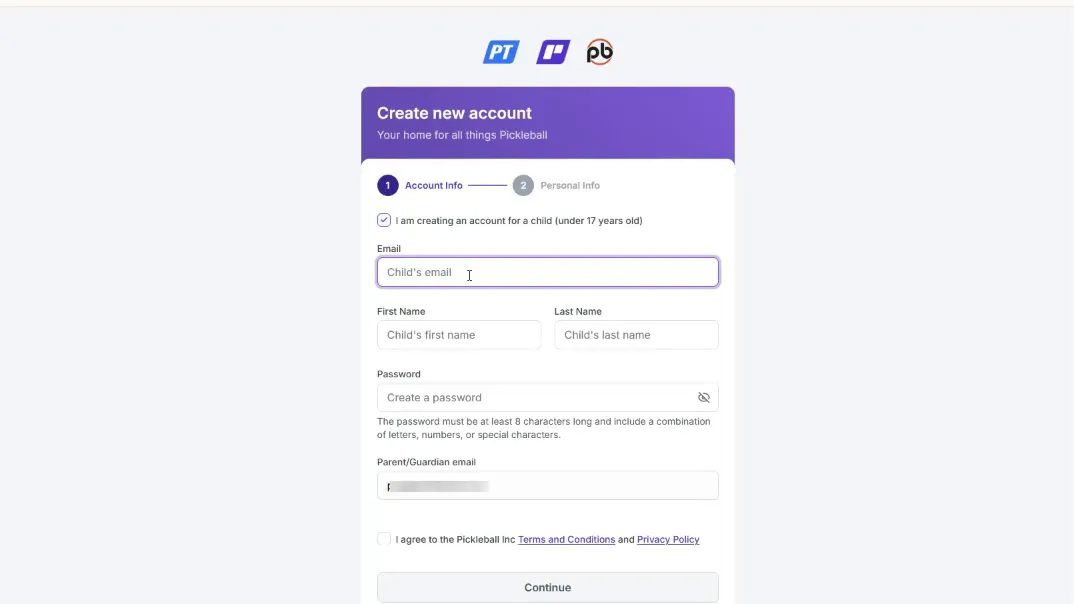
- Go to Pickleball.com and click Sign Up.
- Select the option: “I am creating an account for a child under seventeen years old.”
- Log in to your parent/guardian account when prompted.
- Fill in the child’s required information:
- Child’s email address (required)
- Create a password for the child’s account
- Child’s phone number or parent/guardian phone
- Skill level, time zone, and any profile preferences
- Read and agree to the Terms of Service and check any applicable checkboxes on the form.
- When prompted, open and sign the Media Release and Consent formas the parent/guardian:
- Click the checkbox to view the release
- Read the release, then type your "last name" and check that you read the terms
- Return to the account creation page and click Create Account.
- Check the child’s email for the six-digit verification code, enter it, and click Verify and Create Account.
After the account is created — managing the child’s profile
Once the child’s account is saved, it appears under your profile in the “Accounts I Manage”section. From there you can:
- See a list of all minor accounts you manage.
- Use the Impersonate button to act as the child when registering for events or lessons — this streamlines registration and keeps everything under one parent account.
What “Impersonate” means
Impersonating an account allows you to complete sign-ups, registrations, and purchases as if you were logged in as the child. It does not transfer ownership of the child’s account; it simply provides a way for the parent/guardian to manage tasks on the child’s behalf.
Common questions & troubleshooting
- My child doesn’t have an email address: You’ll need to create one for them to complete account verification. Alternatively, some households use a child-specific family email, but the system requires a unique email per account.
- I didn’t receive the verification code: Check spam/junk folders first. If it’s not there, ensure the email was entered correctly and request a new code from the account creation screen.
- How do I change the child’s phone number later? Go to the child’s profile from your “Accounts I Manage” list and edit contact details.
- Can a minor later move their account under a parent/guardian? An update planned for a future phase will allow players to release accounts to a manager or move an existing minor account under a parent/guardian account.
Next steps
After the account is created and verified, you can immediately register the child for events, lessons, or local play sessions using the Impersonate feature. You can also decide what settings are available to your minor, such as showing their last name or not.
- Child’s email address (required)
- Create a password for the child’s account
- Child’s phone number or parent/guardian phone
- Skill level, time zone, and any profile preferences
- Click the checkbox to view the release
- Read the release, then type your "last name" and check that you read the terms
If you have an already-existing minor account:
This guide explains how adults can connect already existing minor accounts to their own account so they can manage everything from one place. Once connected, a parent or guardian can receive notifications, complete waivers, register minors for events, and act on behalf of the minor using an impersonation feature. Follow the steps below to add a parent or guardian, accept management requests, and manage privacy and waivers.
Before you begin
- Child's credentials: You will need the minor's username and password to initiate the request from the minor's account.
- Parent/guardian email access: The parent or guardian must have access to the email address associated with their account to accept the request.
- Logins: Make sure to log out of any minerspickleball.com accounts you are currently signed into before clicking email links (see troubleshooting below).
Step 1 — Start from the minor's account
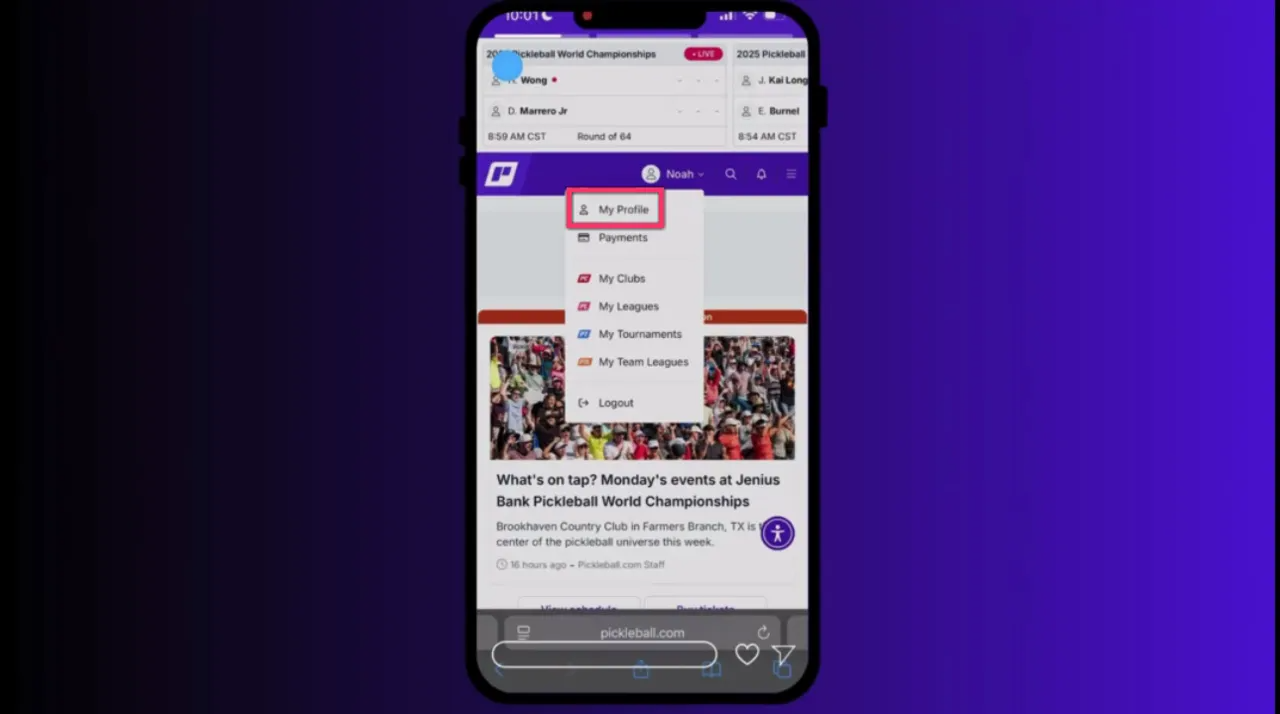
Sign in with the minor's username and password. From the main page, tap or click the minor's name in the upper right corner and open My Profile. Select Edit Profile to access account settings.
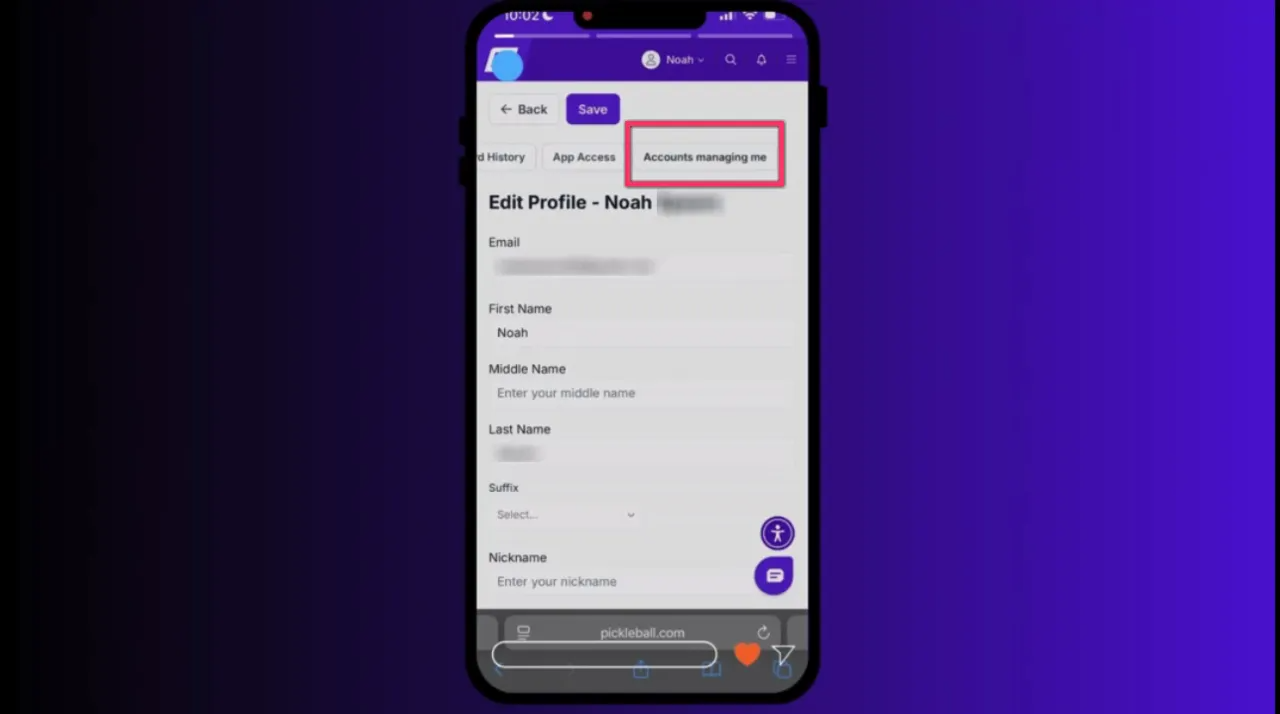
At the top of the profile page you'll see a horizontal menu. If you're on a touch device, hold your finger on the menu and slide left to reveal hidden menu items. When you reach the end, select Accounts Managing Me.
Tap Add Parent near the top of that screen. Use the search bar to type the parent or guardian's first and last name. When the correct person appears, click Select to add them as a manager. Confirm by clicking Yes, Send to trigger an email invitation to the parent or guardian.
Step 2 — Parent/guardian accepts the management request
After the request is sent, log out of the minor's account and open the parent or guardian's email inbox. The incoming message will indicate a minor has requested that you manage their account.
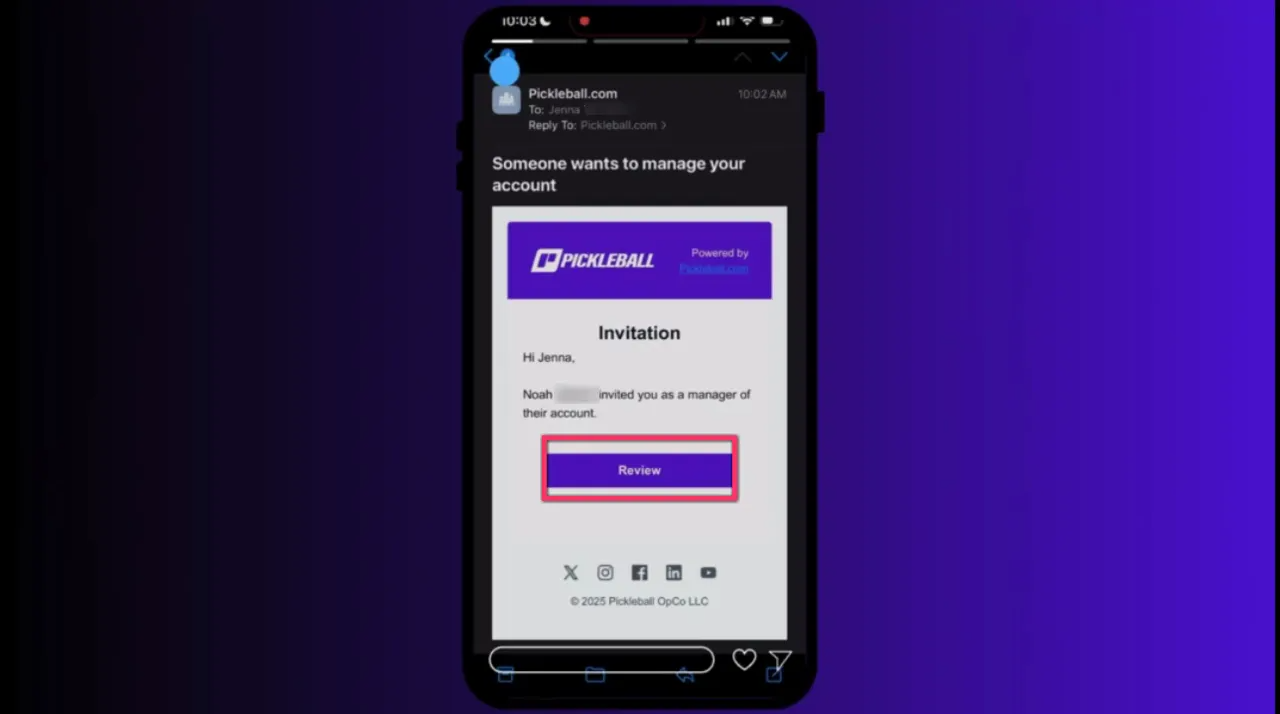
Important: before clicking the Review link in the email, verify that you are logged out of any minerspickleball.com accounts and then log in using the parent or guardian account credentials. If you remain logged in as a different user, the review link will not work properly.
Step 3 — Complete the consent and accept management
When you click Review while logged into the parent or guardian account, you will see an invitation to manage the minor's account. You must accept the required releases to proceed:
- Check the box to accept the media release and parental consent waiver.
- Read the terms, then sign by entering the parent or guardian last name at the bottom of the consent screen.
- Check the final acknowledgement box and click Accept to confirm management.
After acceptance, you can view the minor's profile directly or open a list of Accounts You Manage to see all linked minors.
Step 4 — Notifications and impersonation
From the Accounts You Manage area you can:
- Enable or disable notifications for each minor using the notification toggle.
- Use the Impersonate button to act as the minor. Impersonation allows you to register the minor for tournaments, edit registrations, complete tasks, and make changes that require the minor's account access.
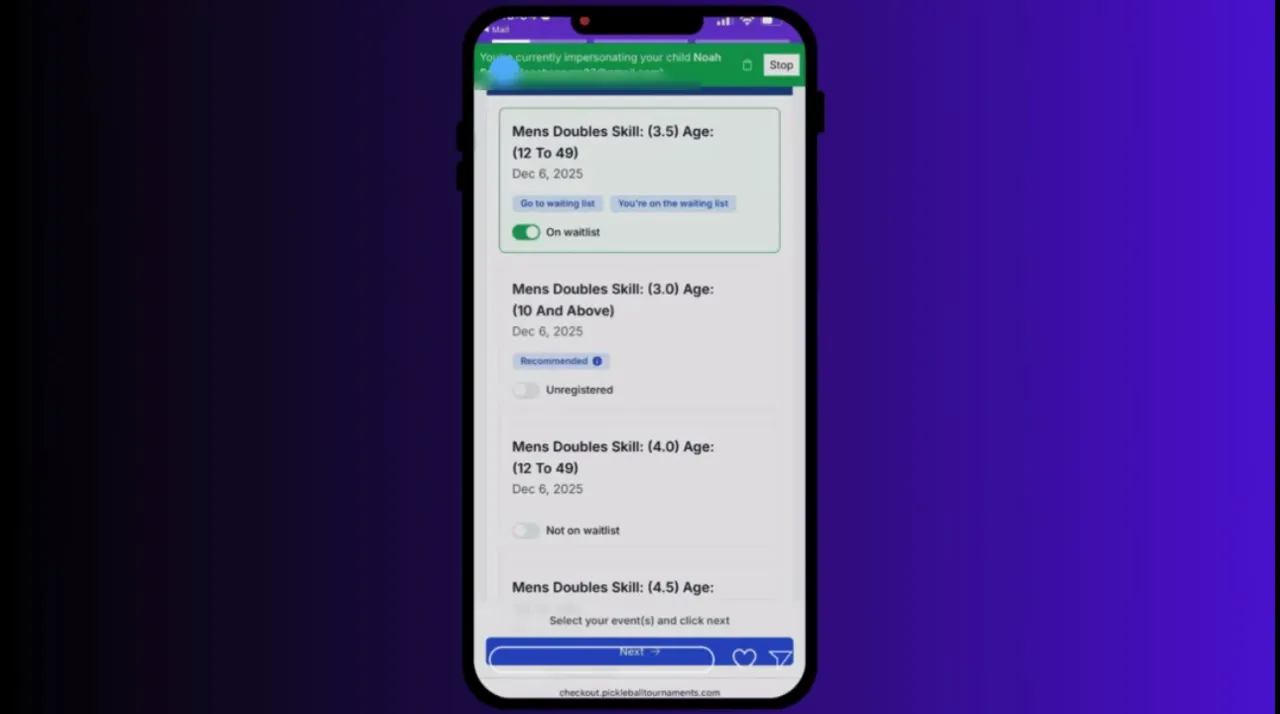
While impersonating, you are effectively operating inside the minor's account. Any actions you take will behave as though the minor performed them. This is useful for registrations, payment, and profile updates.
Step 5 — Information protection and remaining waivers
While impersonating, go to the minor's profile and slide left on the top menu to reveal Information Protection. Here you'll find any outstanding waivers and privacy settings. Use the toggle switches to update privacy preferences based on the minor's age and the parent or guardian's comfort level.
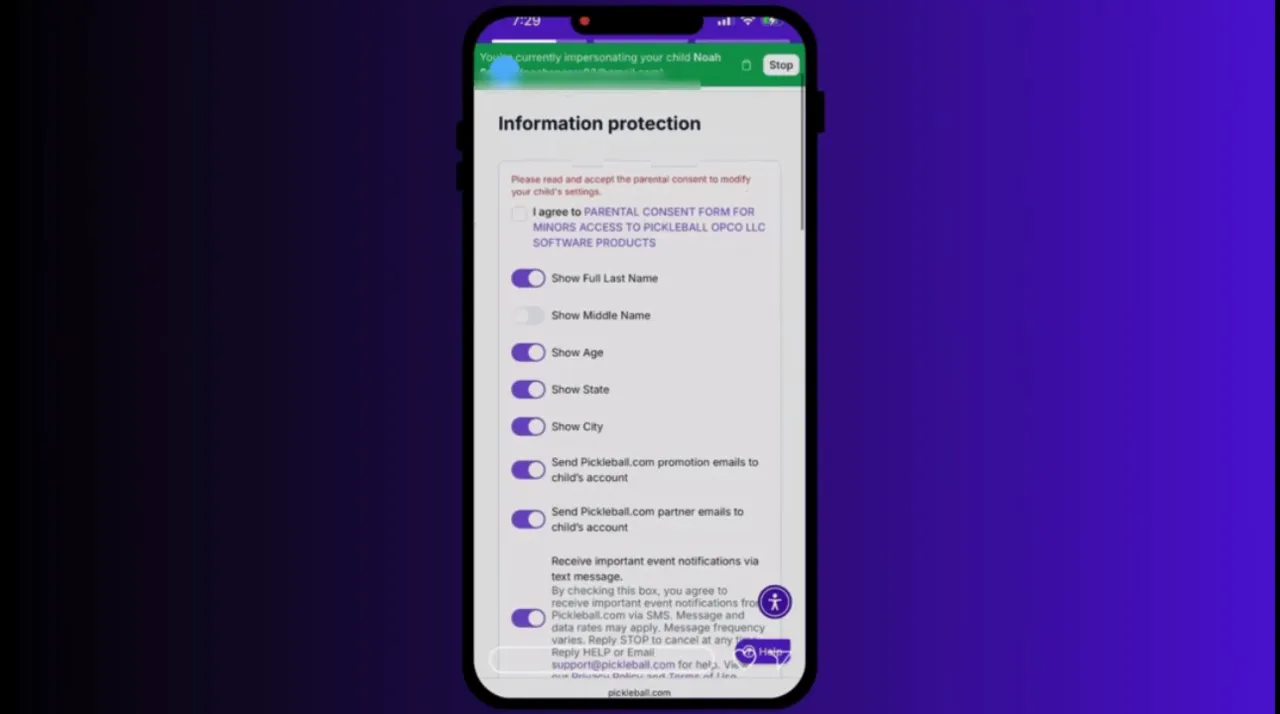
When you are finished performing actions as the minor, click the Stop button at the top of the screen to end impersonation and return to your account.
Troubleshooting and tips
- Link not working: If the email Review link fails, confirm you are logged out of all other minerspickleball.com accounts and then log in again using the parent/guardian credentials.
- Can't find parent in search: Make sure you spelled the first and last name correctly and try variations (middle name, nickname). If still not found, verify the parent has an account on the site.
- Email not received: Check spam folders. Confirm the minor used the correct parent email when sending the request.
- Waivers missing: While impersonating, check Information Protection for any outstanding forms. Signing there completes required consents without needing the minor to do anything.
- Privacy settings: Toggle privacy options according to the minor's age and your consent preferences. Each toggle is reversible unless specified otherwise in policy notes.
Quick checklist
- Log into the minor's account and open Edit Profile.
- Navigate to Accounts Managing Me and click Add Parent.
- Search for and select the parent or guardian, then click Yes, Send.
- Parent logs into their account, clicks Review from the email, accepts waivers, signs, and clicks Accept.
- Parent enables notifications and uses Impersonate for actions that require the minor's account.
- While impersonating, complete waivers and adjust Information Protection settings, then click Stop when finished.
Frequently Asked Questions
1. Do I need a separate email address for my child’s account?
Yes. Each child’s profile requires its own unique email address. Parents cannot use their own email address for the child’s account.
2. Can I manage my child’s account using my own profile?
Yes - please see our video of this video of our process for handling minor accounts.
3. Who receives match start time emails?
Currently, only the child’s email address will receive match start time notifications.
4. Will parents also get copies of scores?
Yes! If a tournament is using texting, parents will also get copies of scores. Additionally, if a tournament is using the "player enter scores" feature, parents will also get notifications to enter scores along with the child if a phone number is available for them. The parent would need to enter scores by impersonating their child, or by logging in as them. Or, the child can do so if they are allowed to log in. Please see the video about Phase 2 for more information on how to impersonate your child.
5. Will parents also get a copy of start time notifications?
Not at this time. This feature is not built in yet but has been flagged for review by the Pickleball.com team.
6. Will parents receive receipts?
At this stage, only the child’s email address gets notifications (including start times). Receipt notifications have not been confirmed for parents.
7. Can both parents/guardians manage the same child account?
Yes - both parents / guardians can manage the same child account if multiple caregivers need access.
8. Will the minor be notified when an adult is added?
The minor initiates the request from their account. Once an adult accepts management, the minor's account reflects the new manager. Communication preferences for notifications can be adjusted in the Accounts You Manage area.
9. Is impersonation logged?
Actions taken while impersonating are performed through the minor's account. Standard activity logs and confirmations apply. Use impersonation responsibly since it allows full account-level actions.
Was this article helpful?
That’s Great!
Thank you for your feedback
Sorry! We couldn't be helpful
Thank you for your feedback
Feedback sent
We appreciate your effort and will try to fix the article