There are times when we need to cancel or reschedule game days in our league due to bad weather or not enough players. As it is important to have each day complete, we have several options to cancel or reschedule a game day to help the rankings run consistently.
The different options we will discuss in this article are:
1. Cancelling game day and removing from game schedule
2. Cancel game day and change to another date
3. Cancel matches that are unplayed and complete the game day
1. CANCELLING AND REMOVING FROM GAME DAY SCHEDULE
a. If you have a game day that cannot be played, first opt out all players from the game day
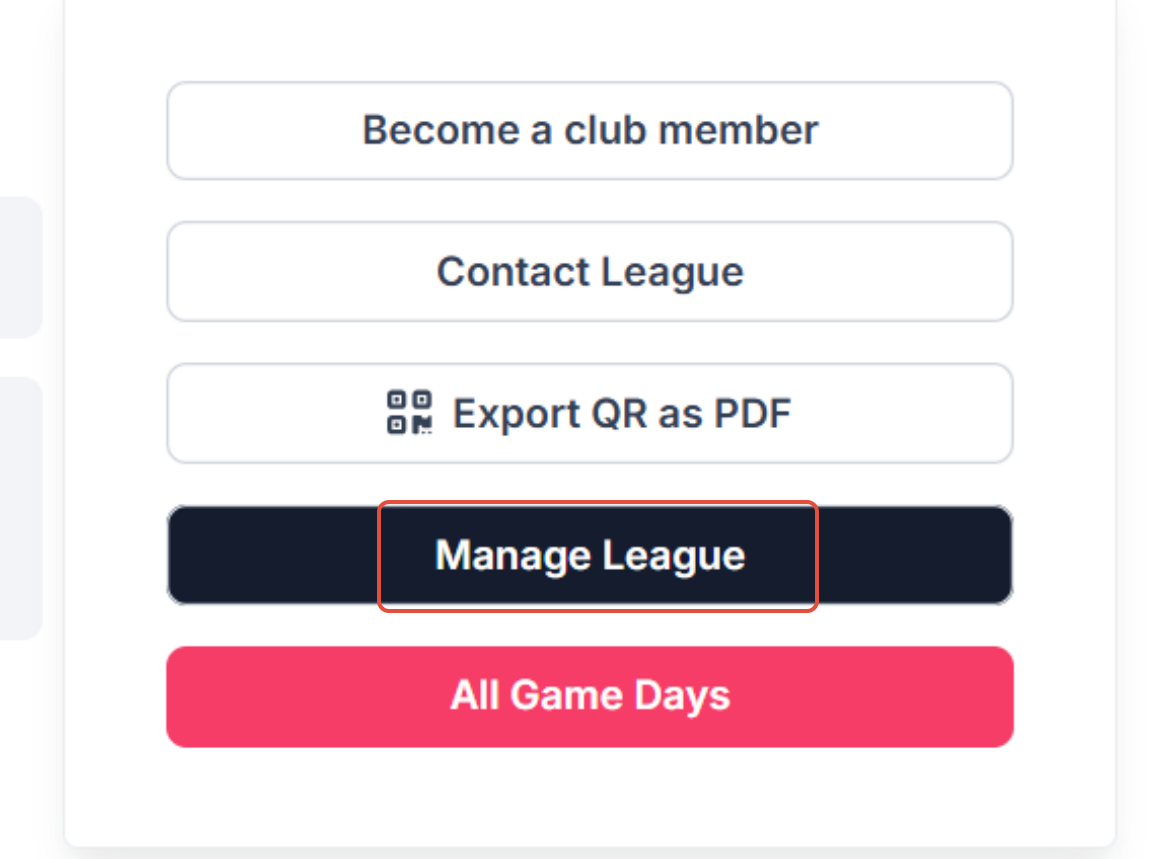
On the league page click on Manage League
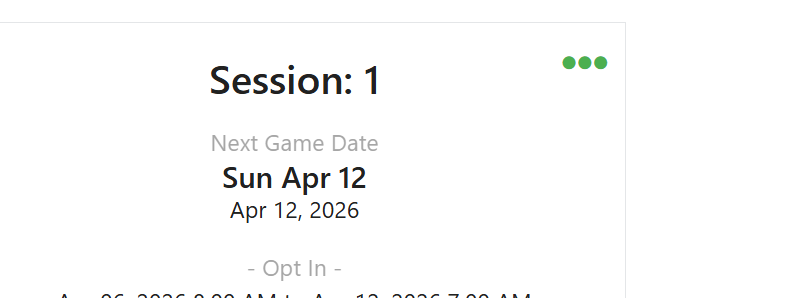
b. Click on the three dots to go to the session menu
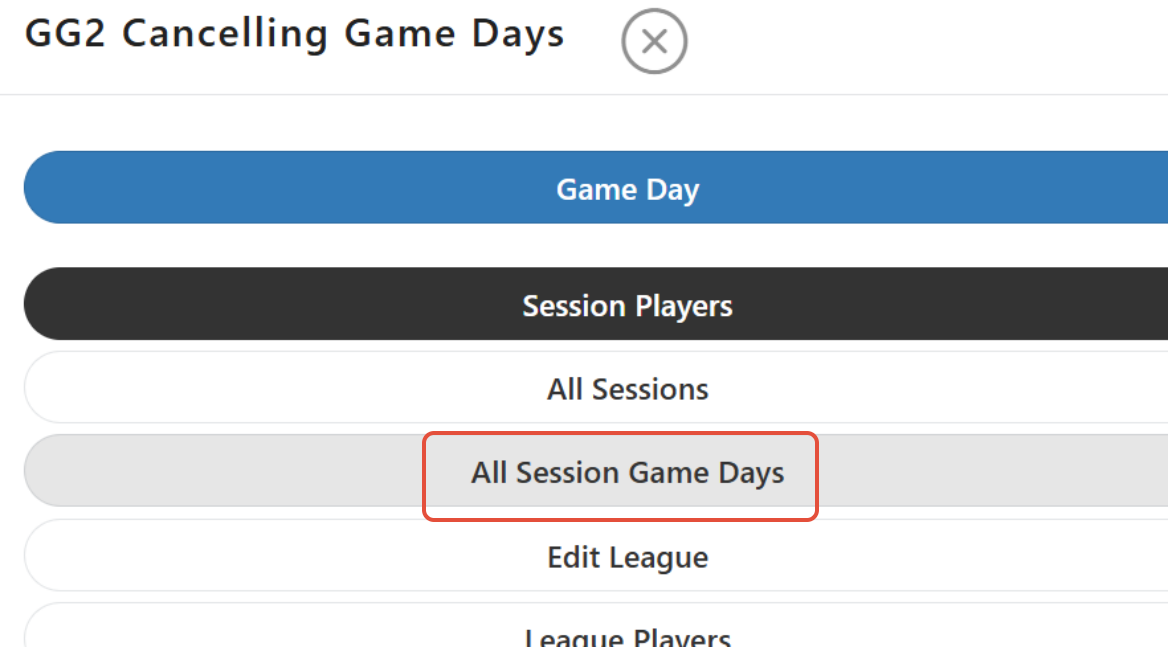
c. Click on All Session Game Days
d. Click on the Game Day that will be cancelled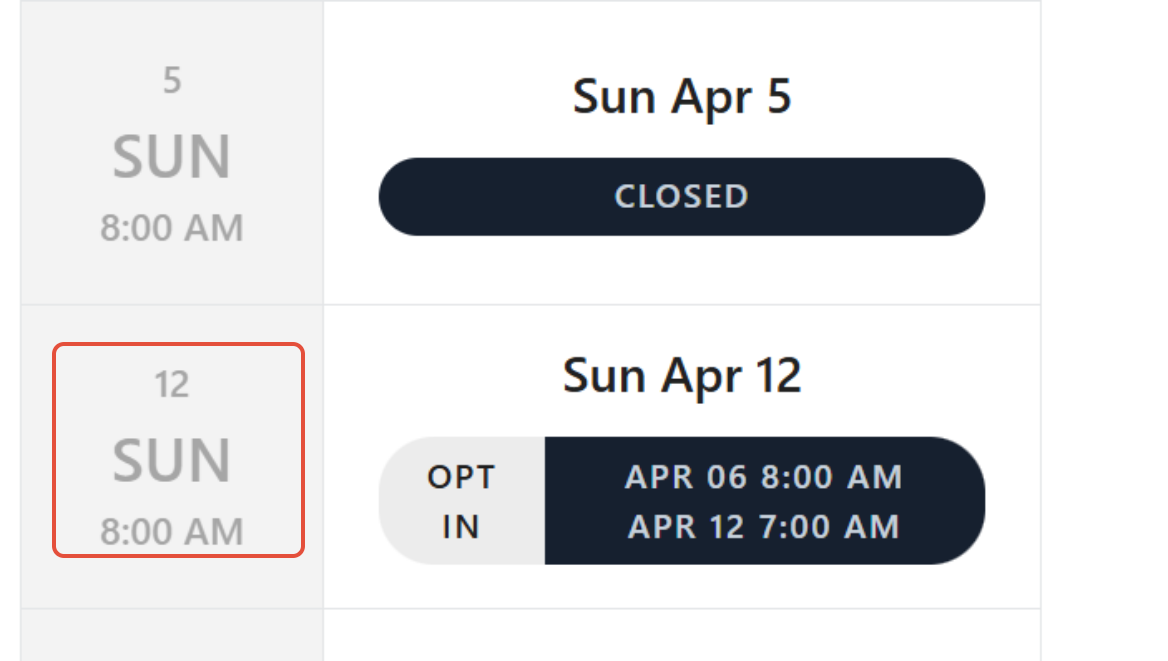
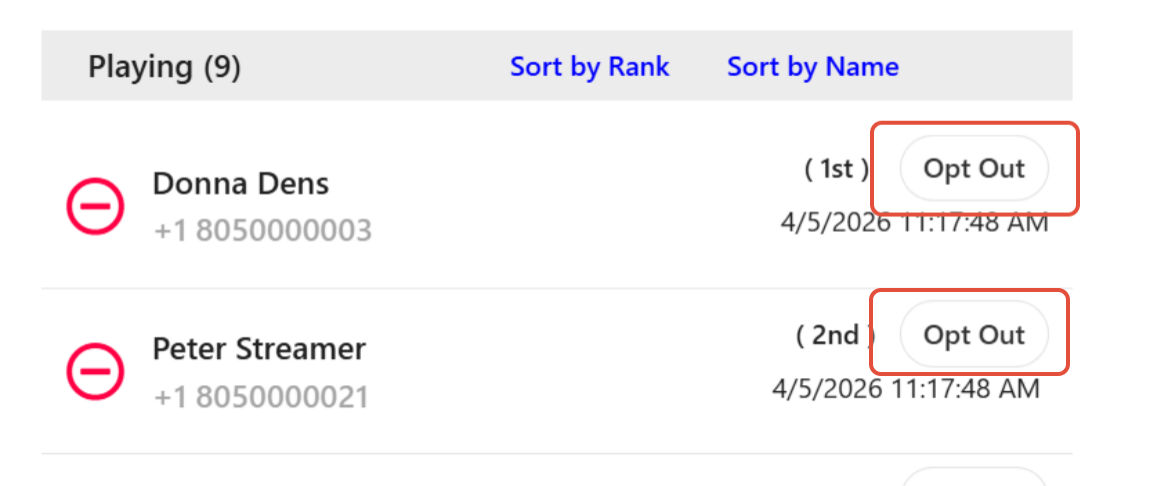
e. Opt out all players from the Game Day
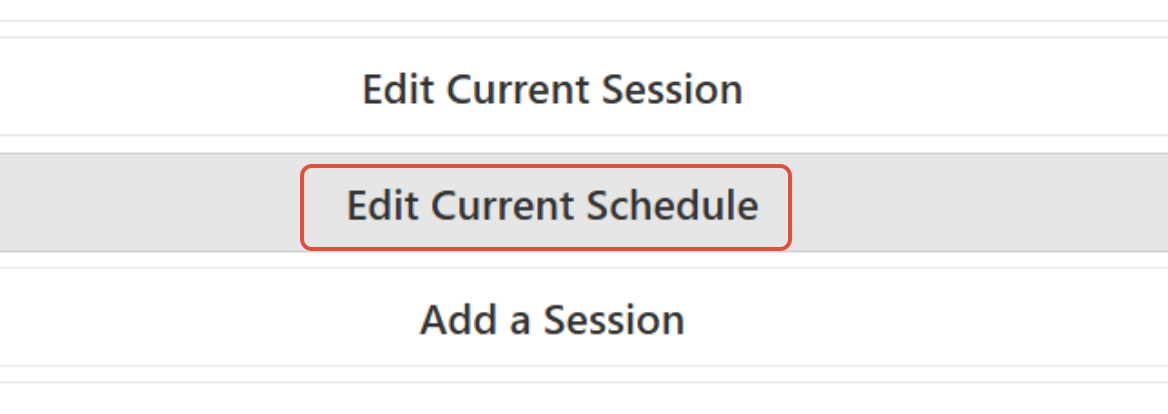
f. Click on Menu tab and go to Edit Current Schedule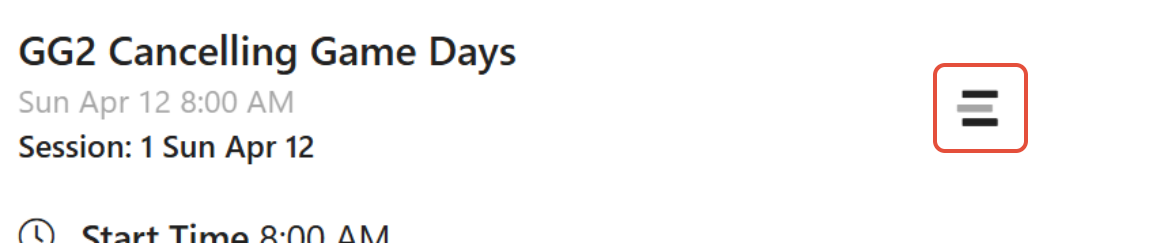
g. Scroll down to the game day, you would like to remove and click on the trash cash. This will remove the game day from the schedule.
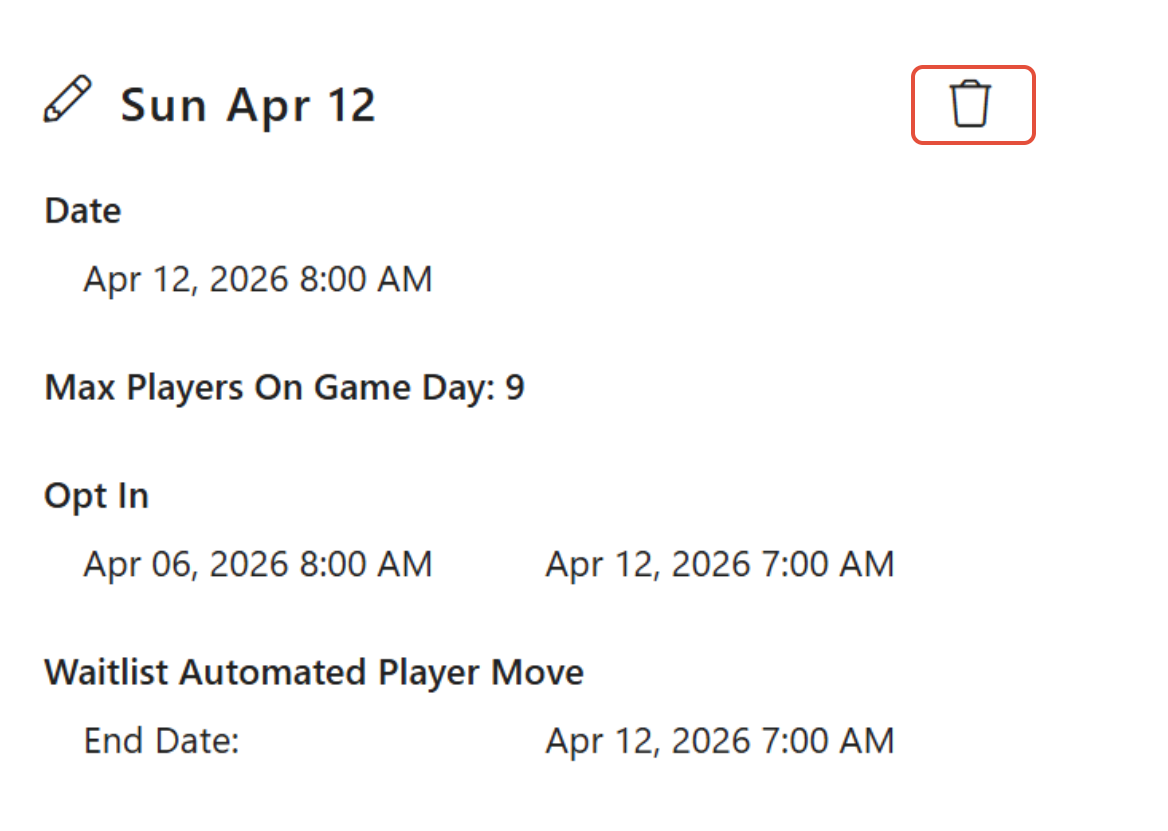
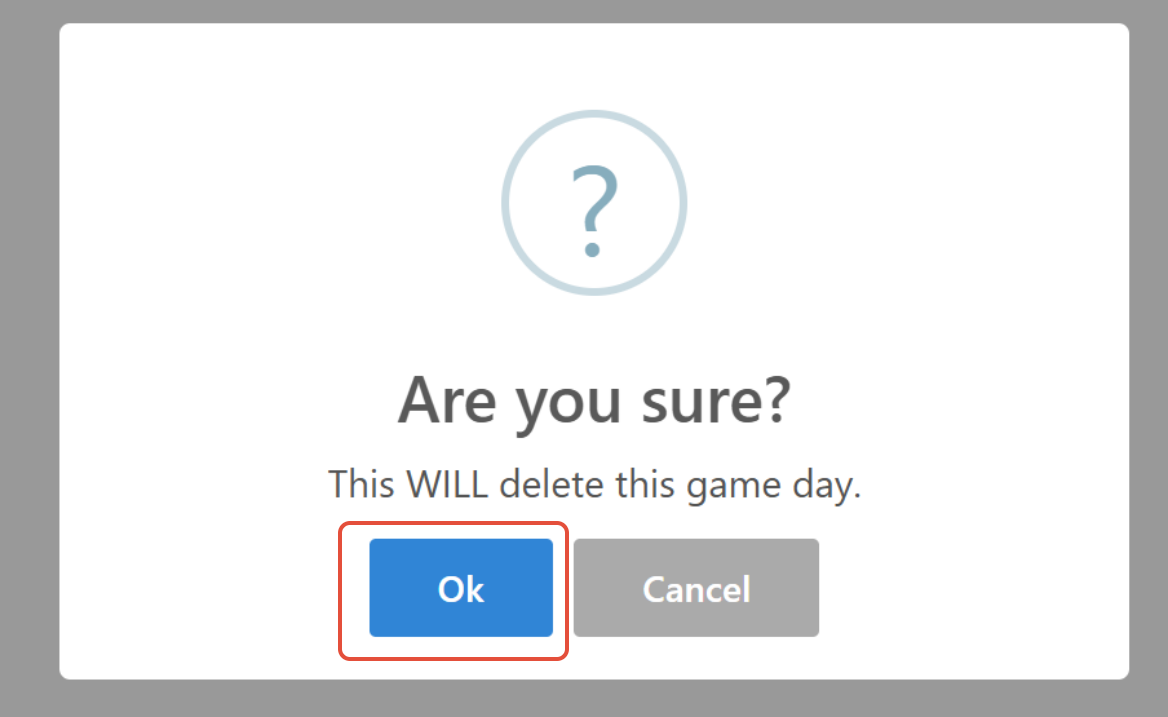
The system will ask you if you are sure you want to delete the game day, press Ok.
2. CANCEL GAME DAY AND CHANGE TO ANOTHER DATE
a. Follow all instructions above for cancelling game day until step 1g.
b. Once at the Edit Current Session
Scroll down to the game day and click on the Edit (pencil)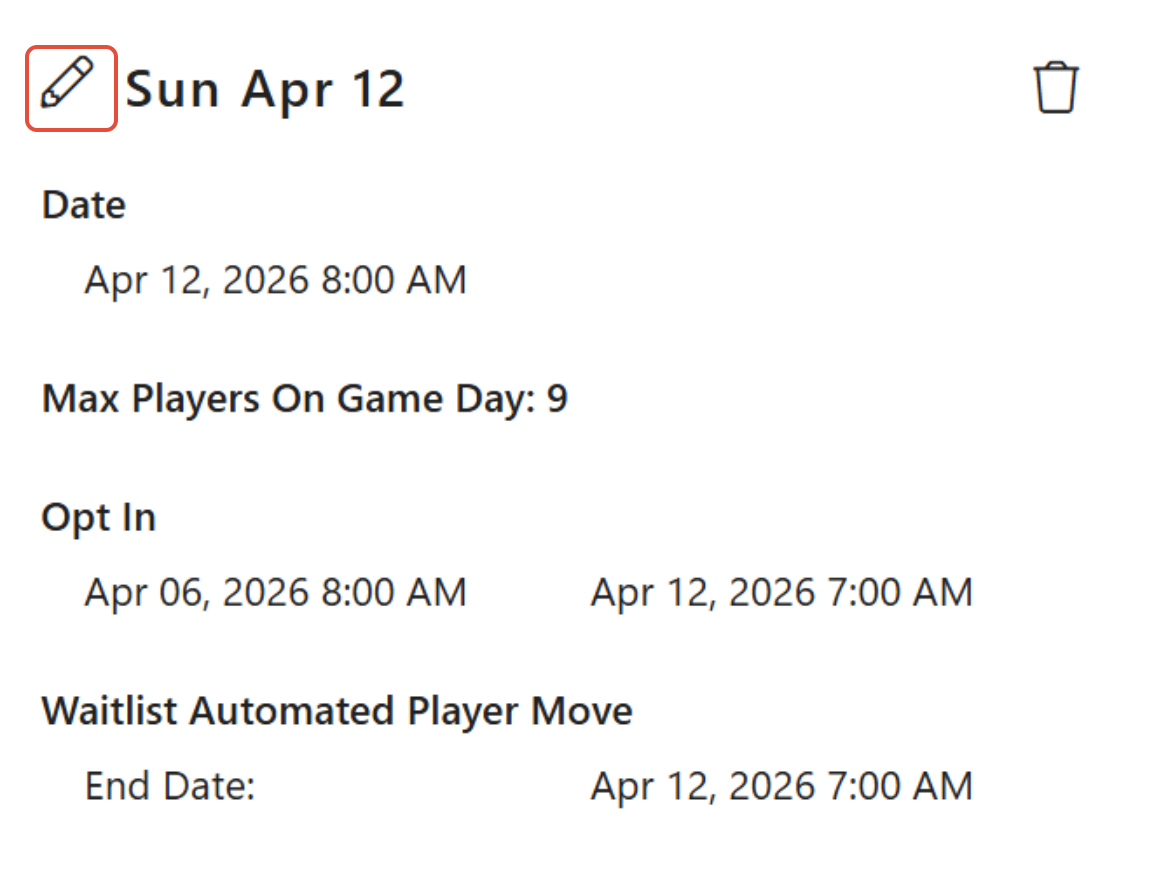
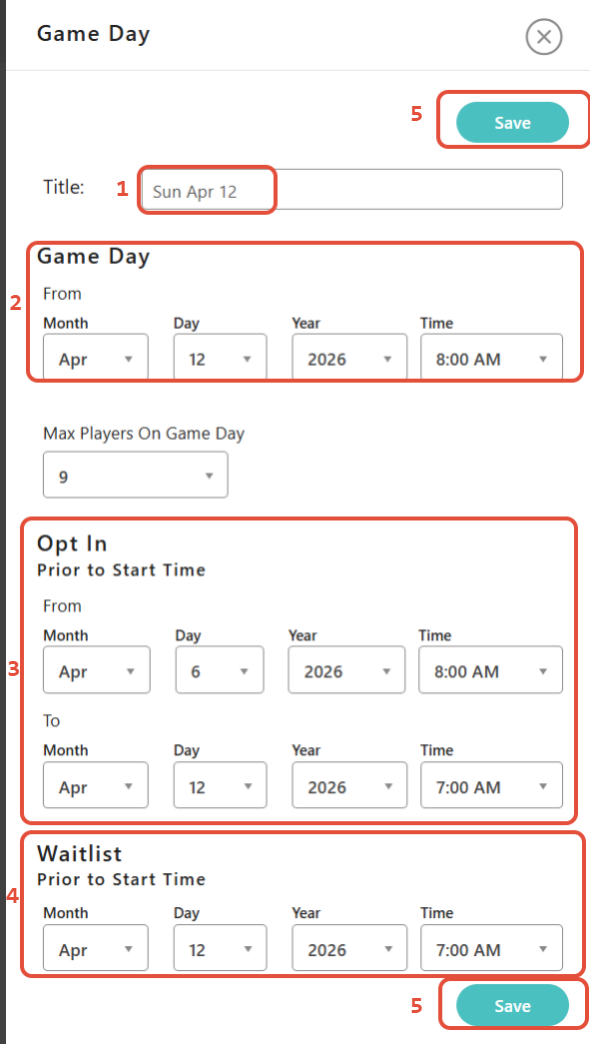
c. This will open up the game day to make all your adjustments.
Be sure to make changes if necessary to the following:
1. Title - this will show to the players
2. Game Day and time
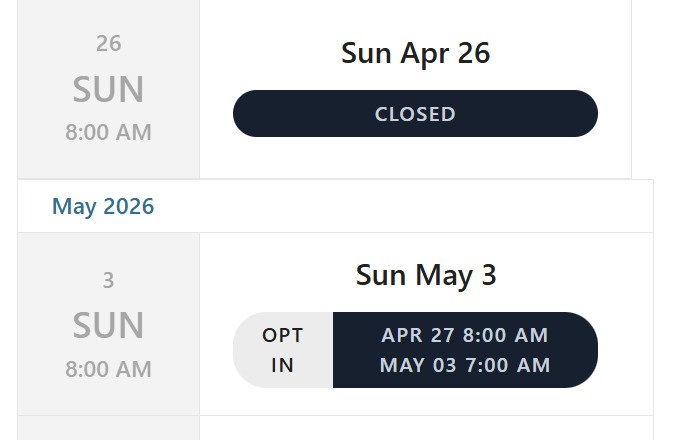
3. Opt In dates and times
4. Waitlist dates and times
5. Save
3. CANCEL MATCHES THAT ARE UNPLAYED AND COMPLETE THE GAME DAY.
There are times when you start your league day and cannot complete game days due to bad weather.
Follow instructions from 1a to 1d
e. You will NOT opt out the players for this game day
Lock the Optin/Out tab
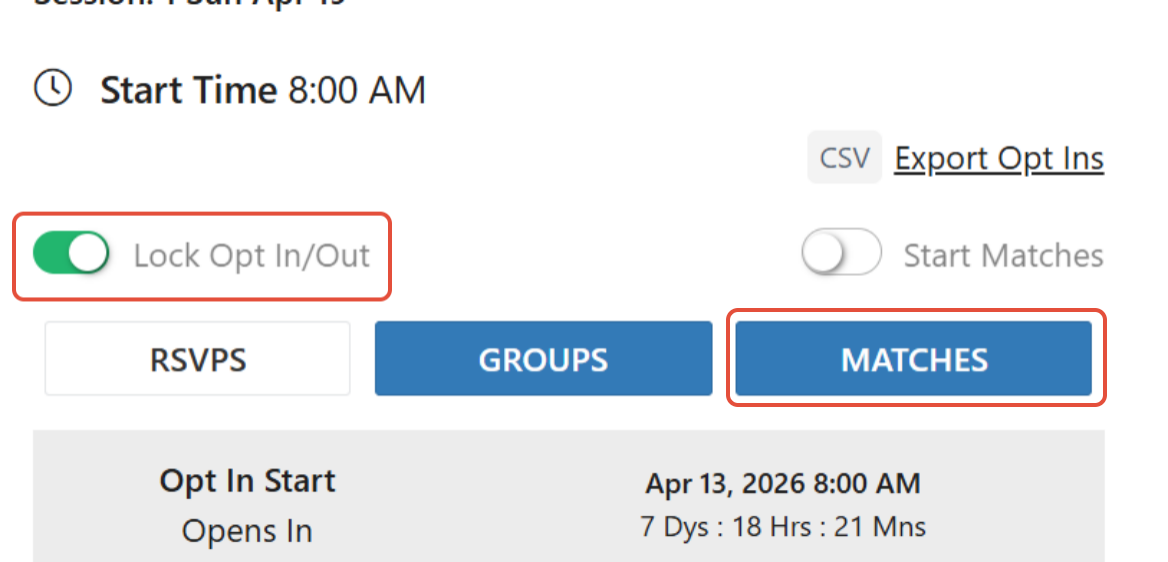
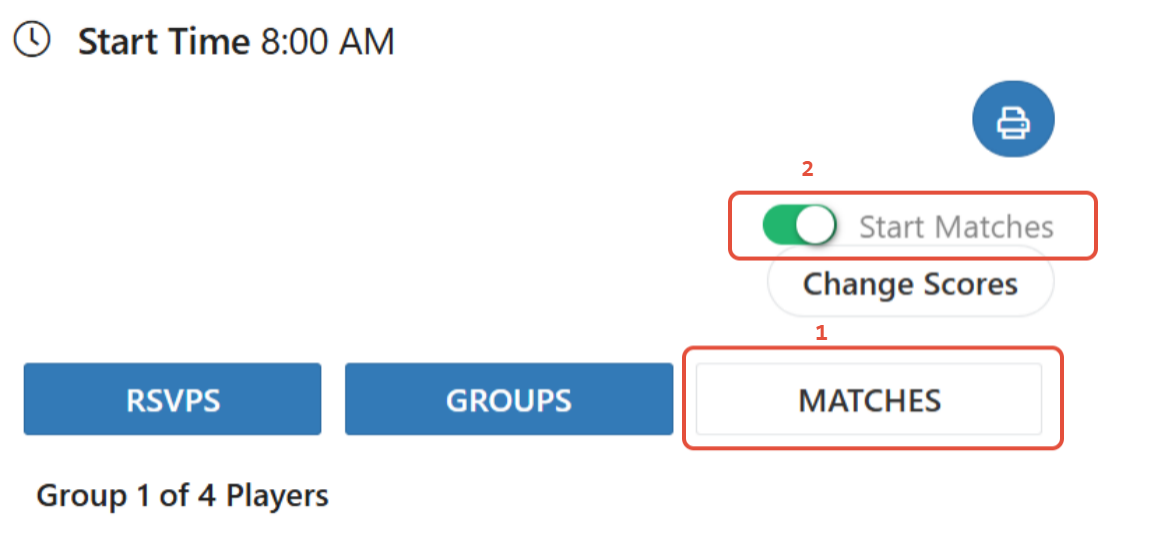
Then click on Matches tab (1) and click on the Start Matches tab (2)
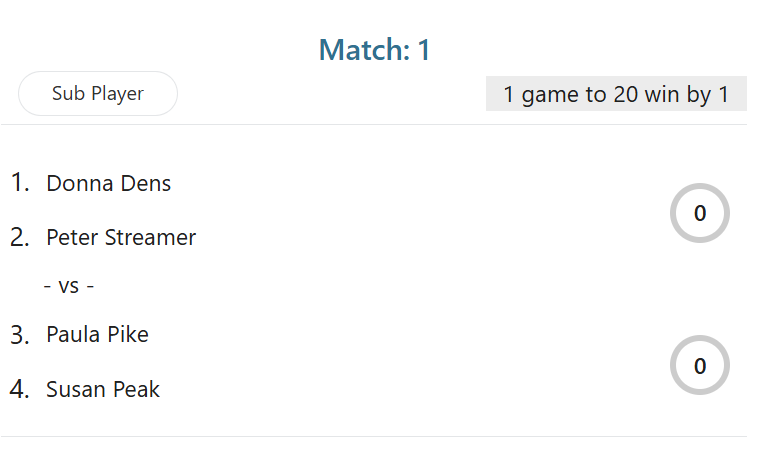
You will then click on the match for the scorecard to appear
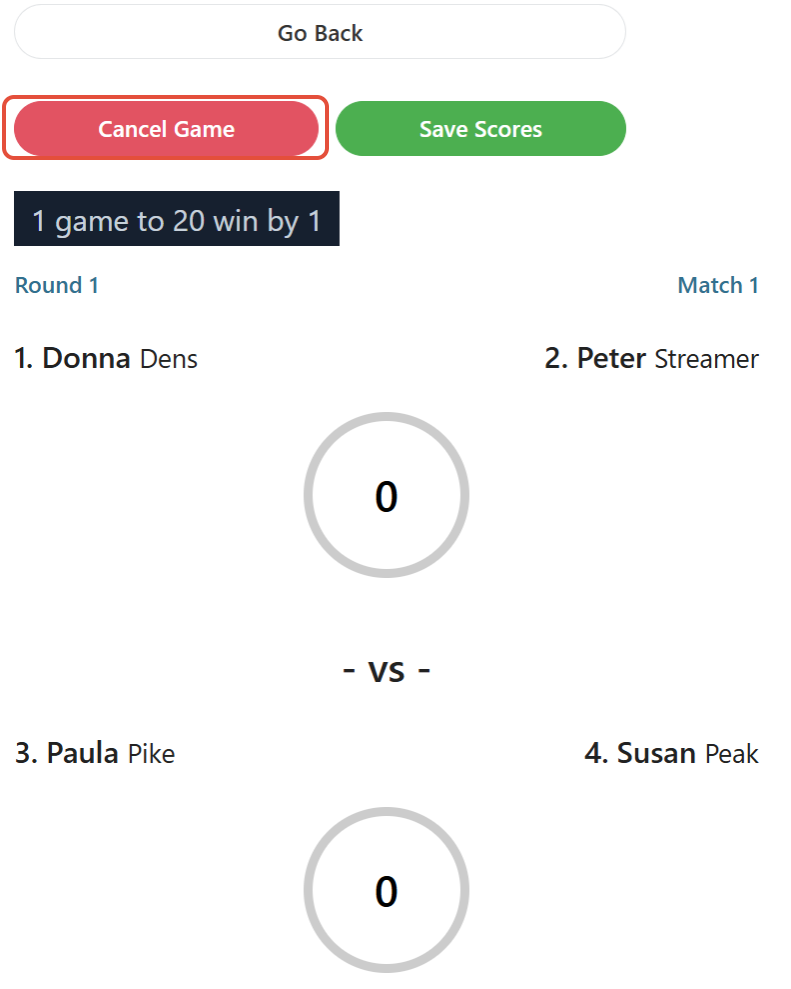
On the top left corner of each scorecard, click on the cancel match tab
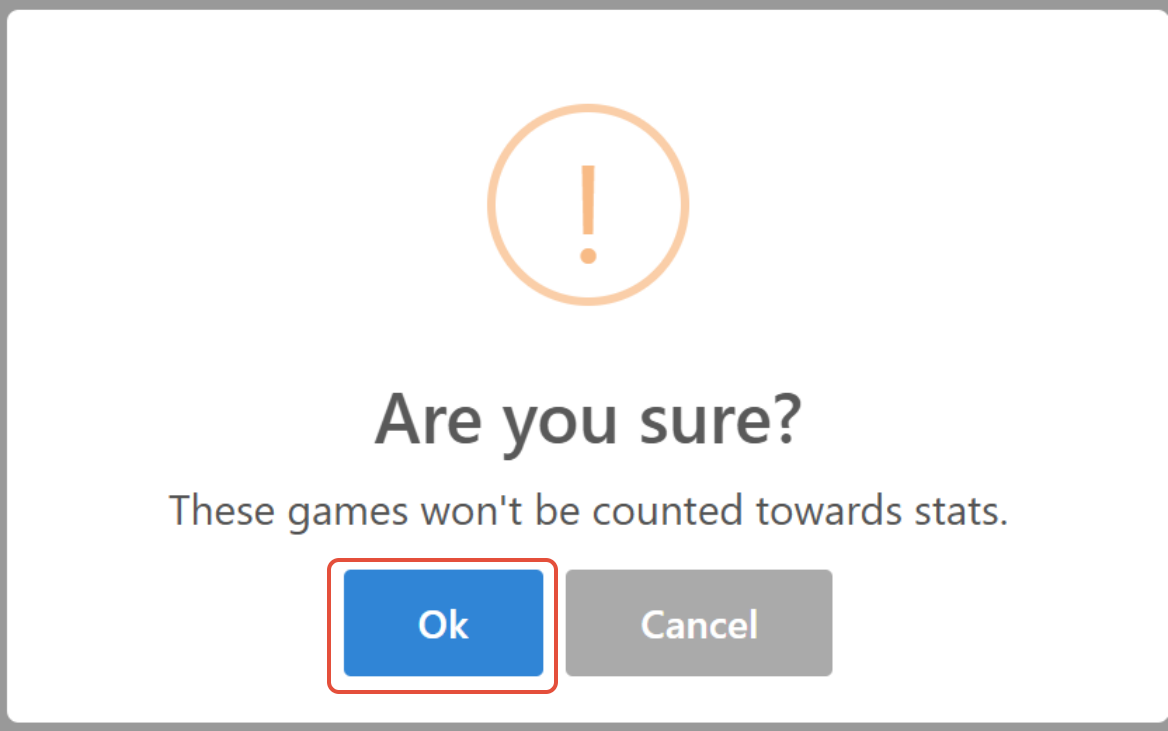
A pop up will come up informing you by cancelling this match, the score will not go towards league stats. Press Ok
The next pop up will inform you, games will be marked cancelled and no scores will count. Press Ok
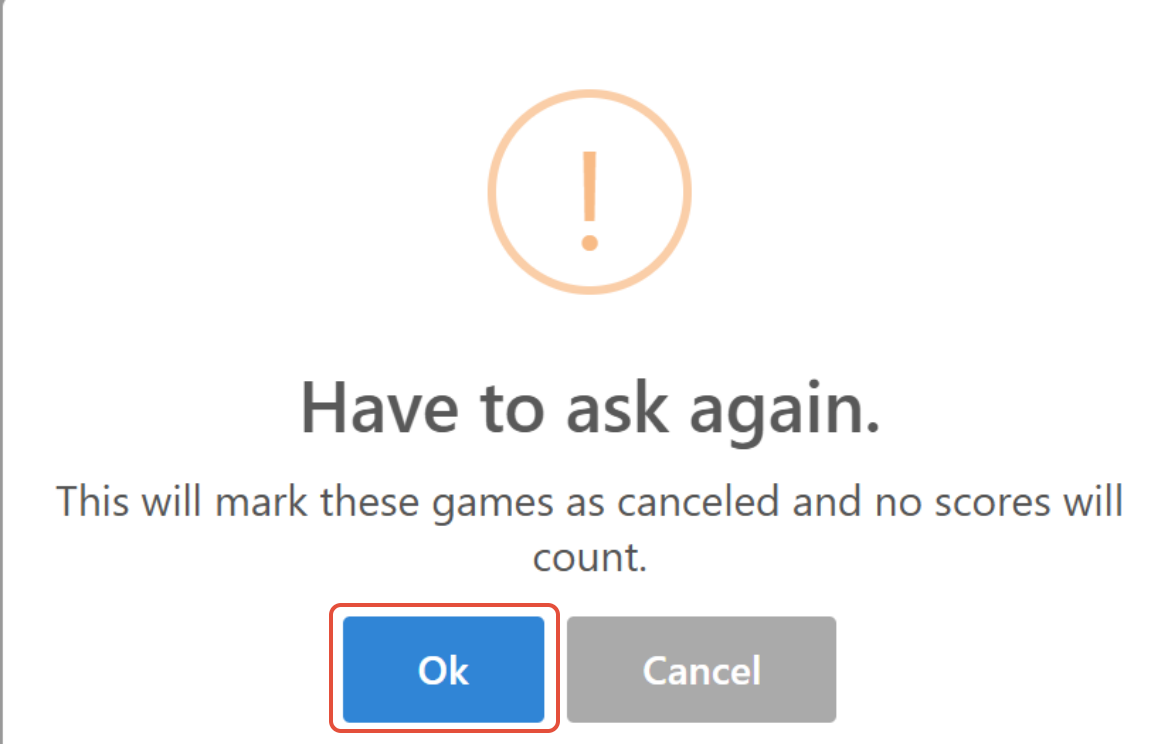
Example of cancelled match screen:
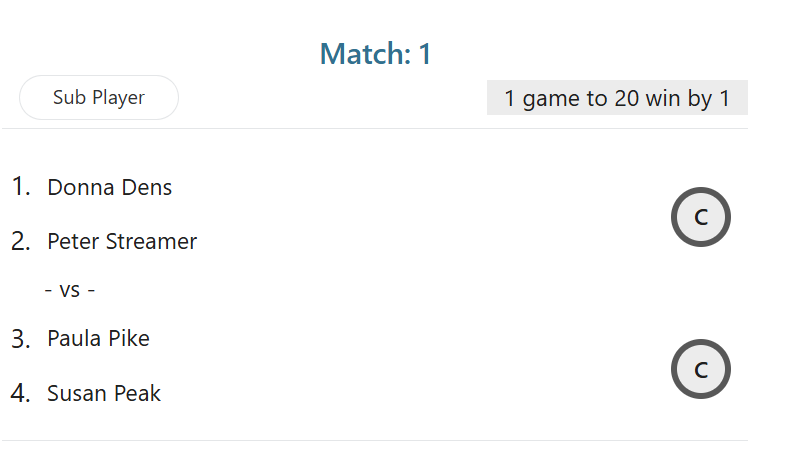
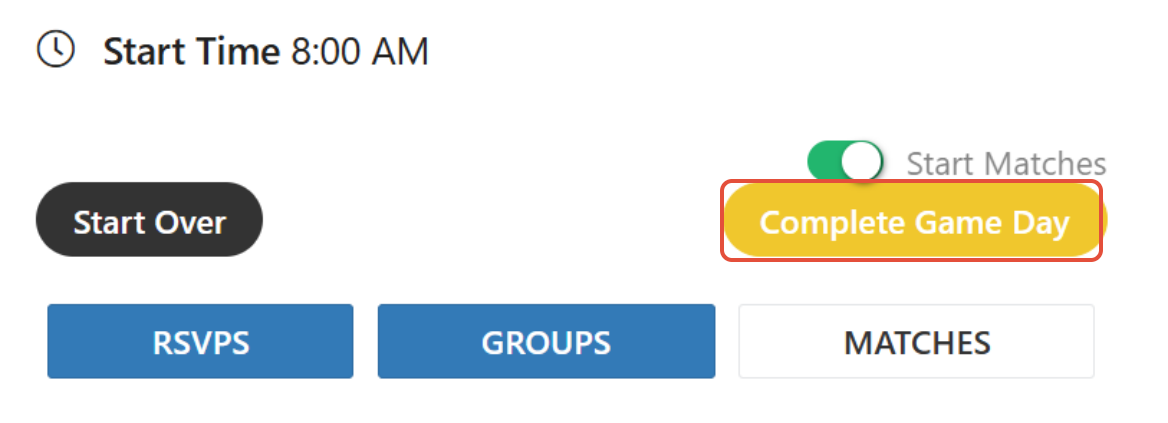
Once all matches have been cancelled (be sure to do all groups), the Complete Game Day will appear. Click on the Complete Game Day tab.
A popup will explain that this will lock all scores.
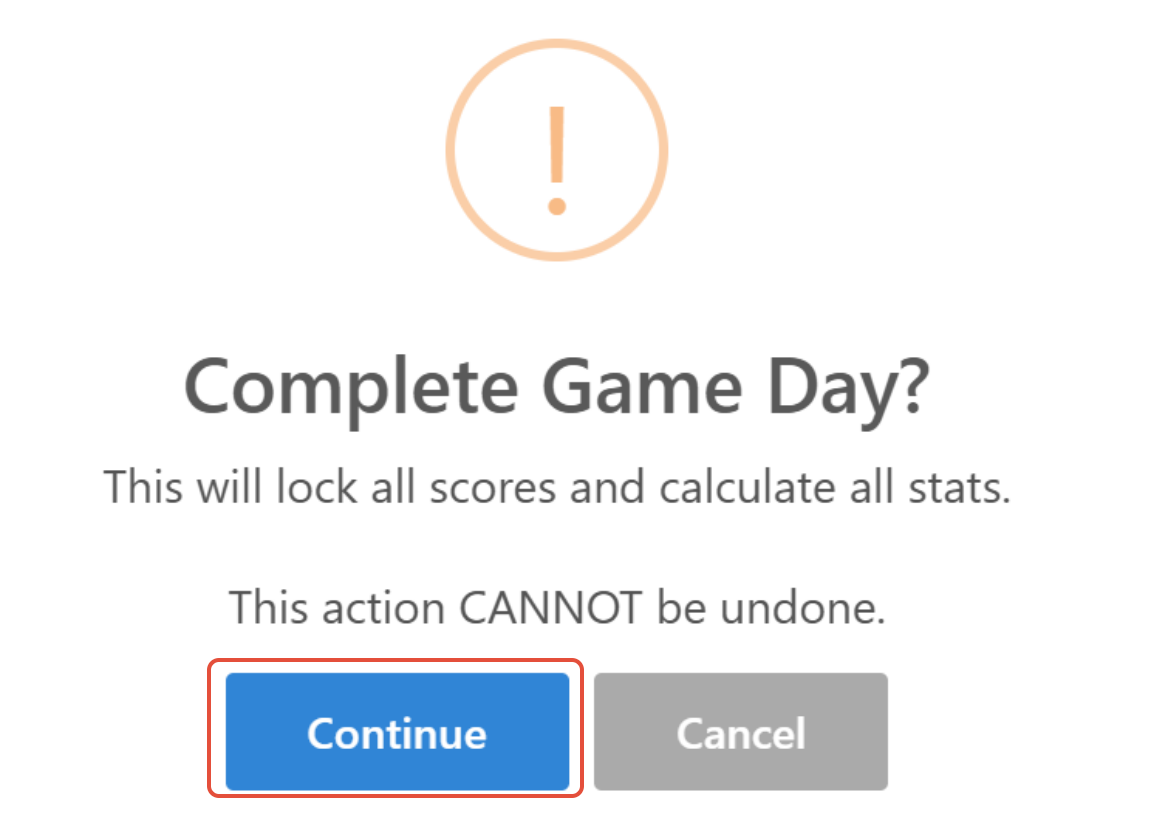
You now have made sure that your game day is complete so you are ready to start your next game day.
If you have any questions, feel free to reach out to our customer support team to assist you.
Was this article helpful?
That’s Great!
Thank you for your feedback
Sorry! We couldn't be helpful
Thank you for your feedback
Feedback sent
We appreciate your effort and will try to fix the article