This article will cover the specific parameters to create your first session for your league.
The League - Lists the format and title of the league. Each league can run a session with numerous game days.
The Session - Sessions are groups of game days that can run multiple weeks. Some sessions are only six to eight weeks only, while others run a year or more.
The League Manager determines the length of the session, often based on a billing period for the league or season of the year (fall, winter, spring and summer).
Once your league has been set up, it will prompt you to Add a New Session. Click on the Add New Session tab.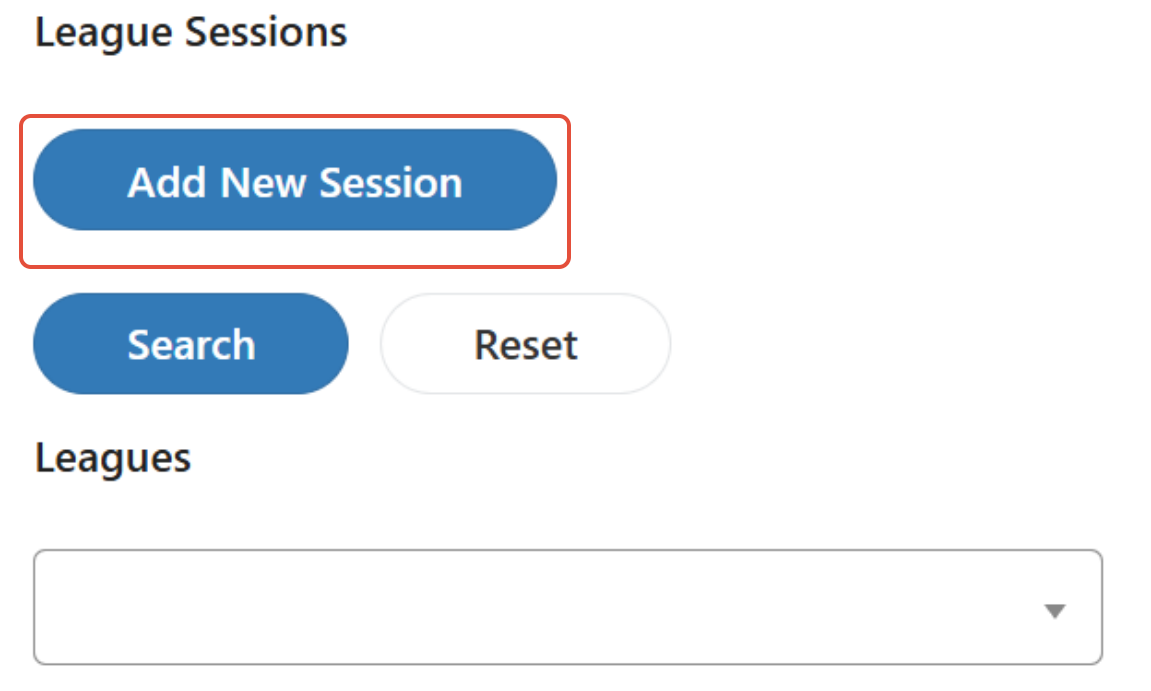

1. Basic Info
Here you will go through a series of steps to configure the session.
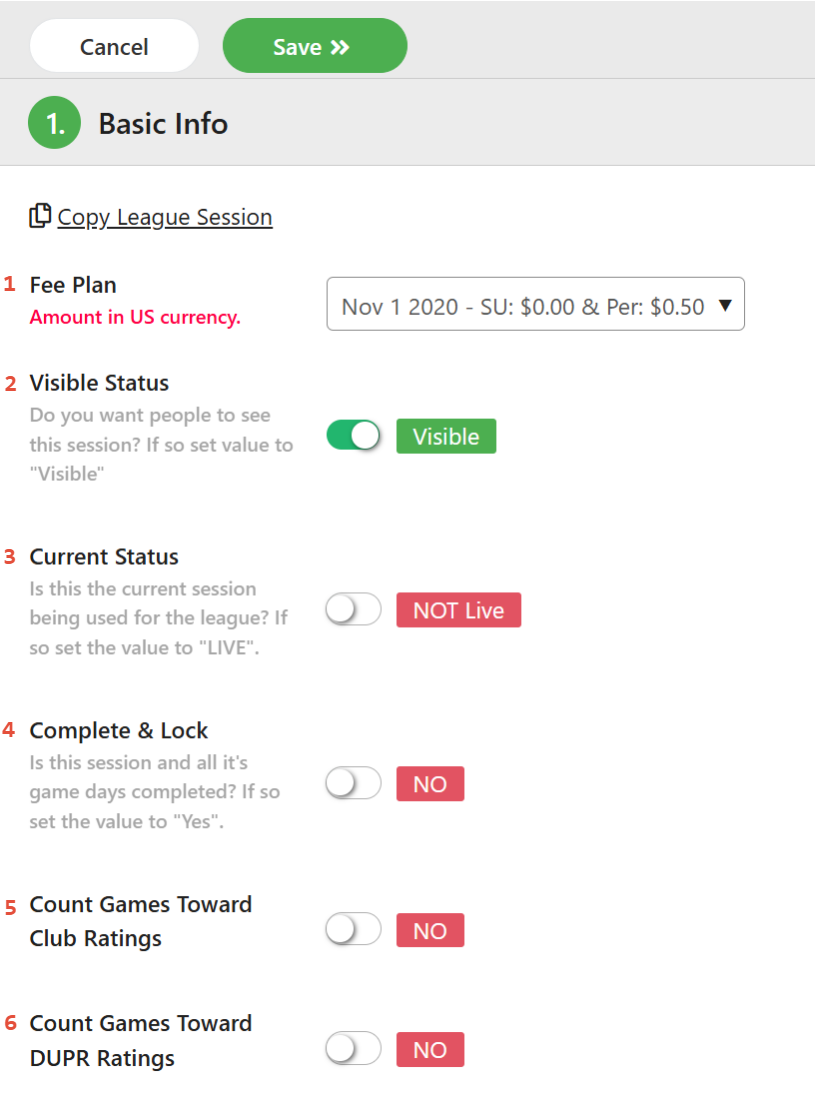
- Fee Plan - This is the current fee for a league in U.S. Dollars.
- Visible Status - This is used to show the league on the public website. This works together with the "Show Public Date" that specifies when it will be shown.
- Current Status - The league is not live until the league director turns this on. That should be done only when the setup is complete and registrations may start.
- Complete and Lock - Turn this on to end the session.
- Count Games Toward Club Ratings - If turned on, games played during this league will count toward club ratings for games where all players in a particular game are club members. If a league is using club ratings to rank players on a ladder, this must be turned on, otherwise it is optional.
**There is an additional fee to calculate club ratings. - Count Games Toward DUPR Ratings - If turned on, games will be sent to DUPR. To use this option ALL players must have a DUPR attached to their profile. Games will go to DUPR once the game day has been completed.
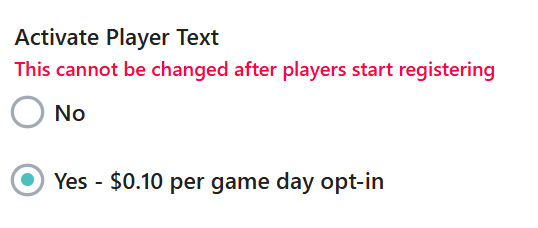
Activate Player Text - If text messages are active for a league, players will receive a message after each game that shows the score that has been entered. League managers will also be able to send a general text message to all of the opted in players on a particular game day.
Note: This price is for U.S. based leagues.
International rates are dependent on the location of the league.
Default Location - Select the playing location for this session. Locations are listed in the Club record.

Session Number - Select the session number for this league. League sessions are consecutive, for example Session 2 follows Session 1, etc.
If this is not the first session of the league, the league manager will be given an opportunity later in the setup process to import all of the players from the previous session.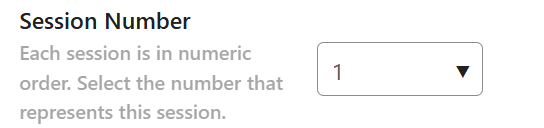
Skill - This will restrict registration for the session to a particular skill level. Skill levels will be evaluated at registration based on the rating choices specified. Age - This will restrict registration for the session to a particular age group.
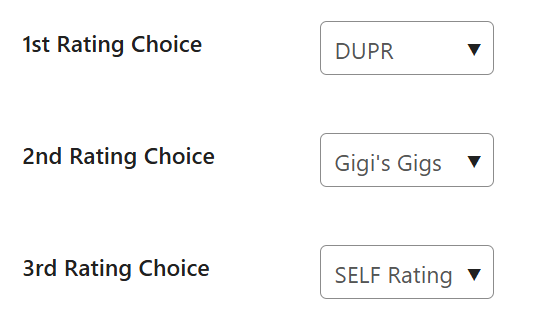
Rating Choice - This specifies the order of selection of the rating to be used for determining the eligibility for session sign up.
The choices are DUPR or Self Rating. These will be evaluated in order of selection.
If a player has a NR rating in their DUPR, the system will look at the self rating.
Use Flex Play - With a Flex League, players will receive an email at the beginning of their current playing week that lists the members of their group. It is there responsibility to arrange play at any time or place of their choosing during that week. All scores must be entered, either by the players themselves or by the league manager, prior to the deadline set for that week. Any matches with no scores will be automatically cancelled. If Flex Play is not chosen, then the session will run as a traditional league where players meet at a specific place and time.
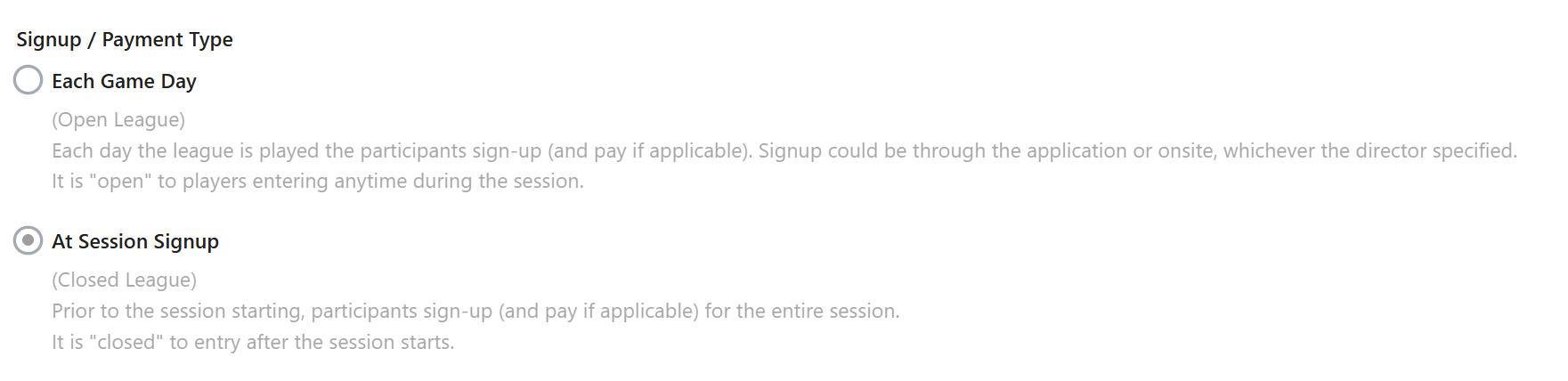
Sign Up / Payment Type - Here you will chose to have players pay per game day or pay for the entire session.
Note: Flex Leagues require a Session Sign Up
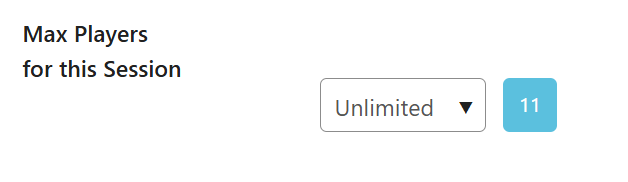
Max Players for this Session - This can be unlimited or restricted to only a certain number of players based on the number of courts available. Flex Leagues can usually be unlimited in size. The blue number shows the current count of registered players.

2. Online Registration Process Parameters - The settings in this section set all of the parameters for the online registration process. If the League Manager is entering players into the session, the age limit deadline will apply if the session is limited to a certain age range.
Note: League managers are not registricted to any registration deadlines.
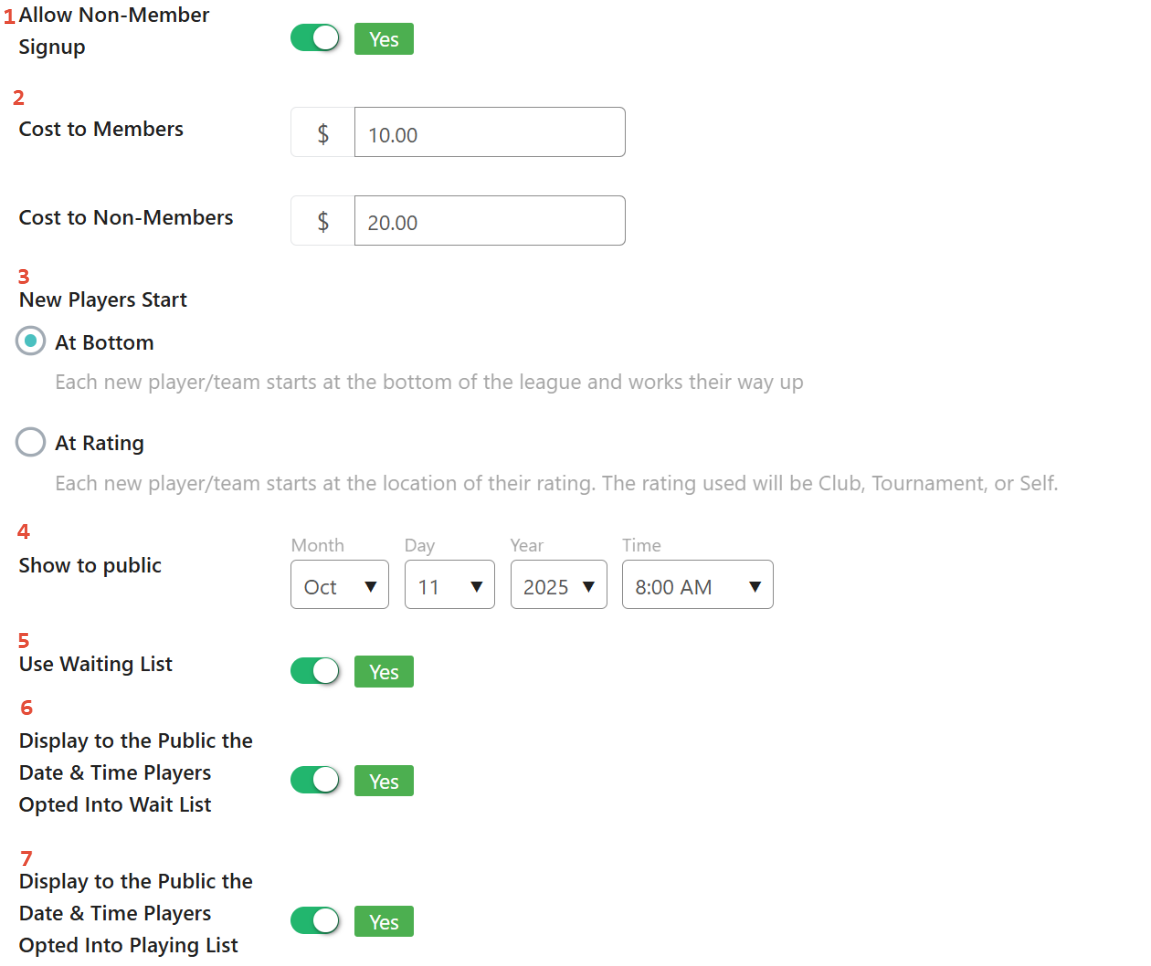
- Allow Non-Member Sign-Up -
Turn this to No - to restrict entry to only those players listed as members of your Pickleball.com Club. The system will give the players an option to become a member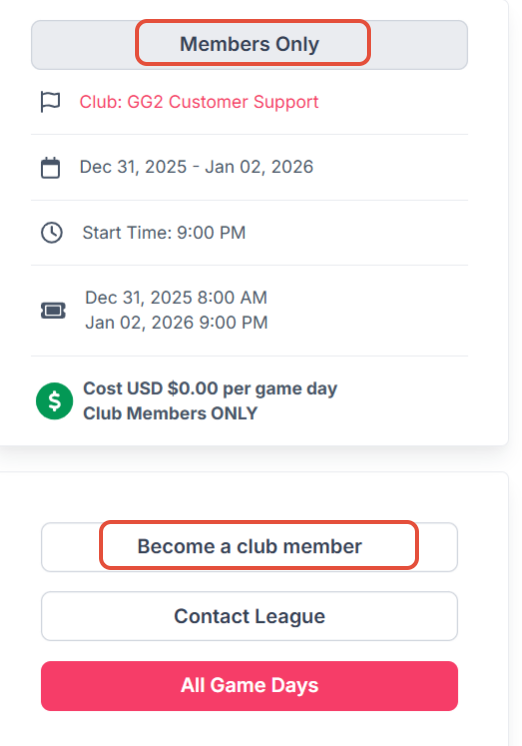 Turn this to Yes - to allow nonmembers to join the league. If this choice is made, only a Cost to Members will show up which will be for Members and Non-Members.
 - Cost to Members / Cost to Non-Members - You can specify different costs for club members and non-members.
Note: The player must be listed as a member of Club running the League on Pickleball.com Club for our system to verify they are a current club member to get the discounted price. - New Players Start - If you are adding new players to a session that already has players from a previous session or that has started but is still accepting registration, let the system know where they are to be placed in the ladder.
At Bottom - Each player/team starts at the bottom of the league and works their way up.
At Rating - Each new player/team starts based on their rating. The rating used will be what was chose in 1st Rating Choice. - Show to Public - This indicates when the session is to be shown on the public website. The session must be set to visible for it to show.
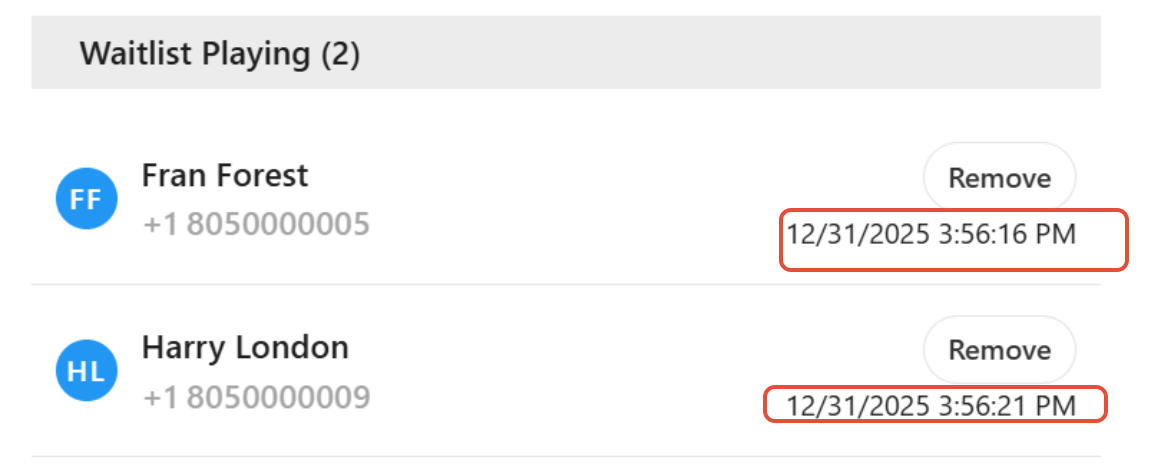
- Use Waiting List - This will establish a waiting list once the maximum number of players have opted in for a particular game day. These players will automatically opt players in if there is an opt out for game day.
- Display to the Public the Date & Time Players Opted Into Wait List - will show in the Detail Page of the current Game Day
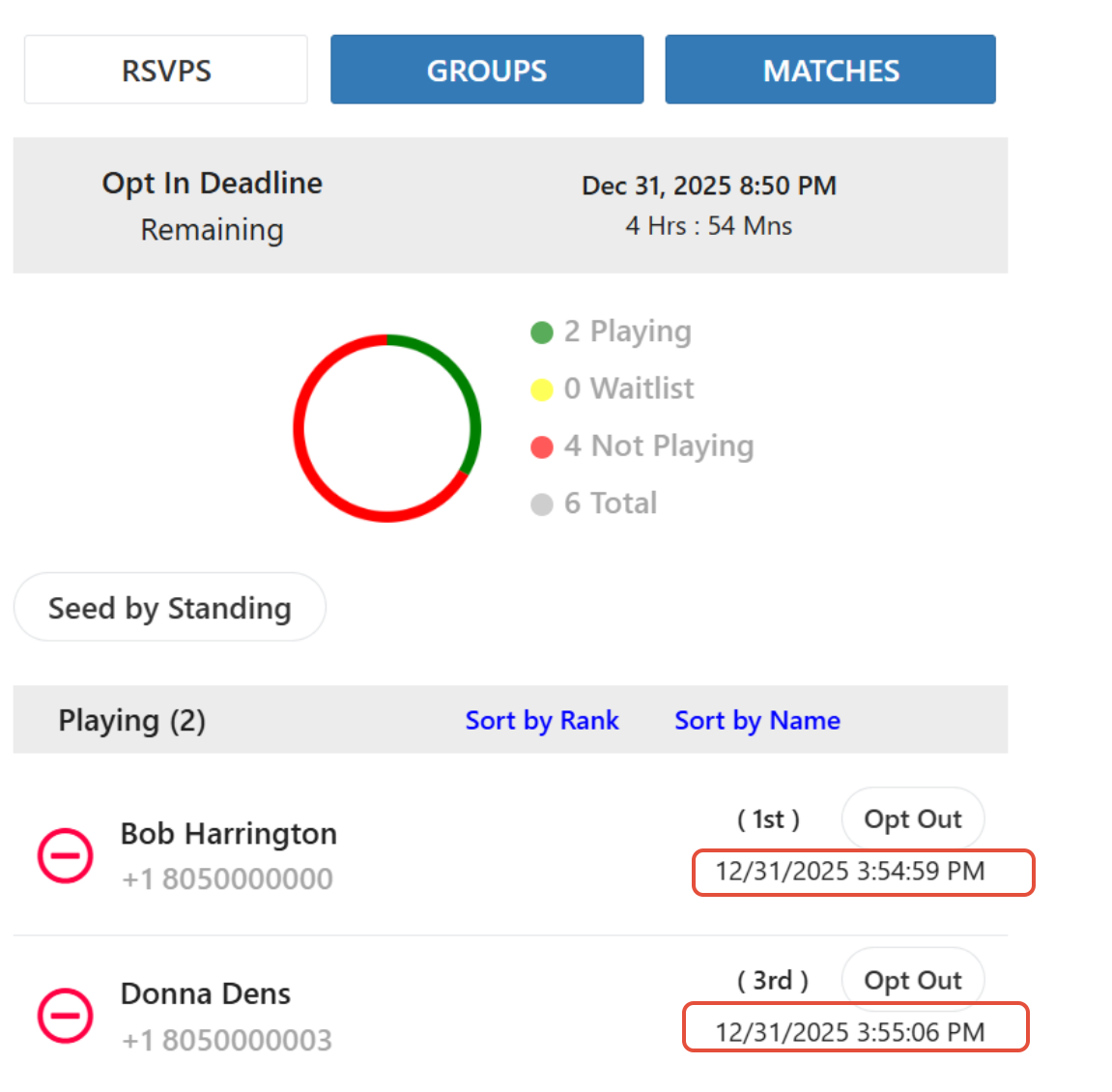
- Display to the Public the Date & Time Players Opted Into Playing List - will show in the Detail Page of the current Game Day
3. Online Registration Process Dates - Here you will set online registration, dates registration is open and age qualifications.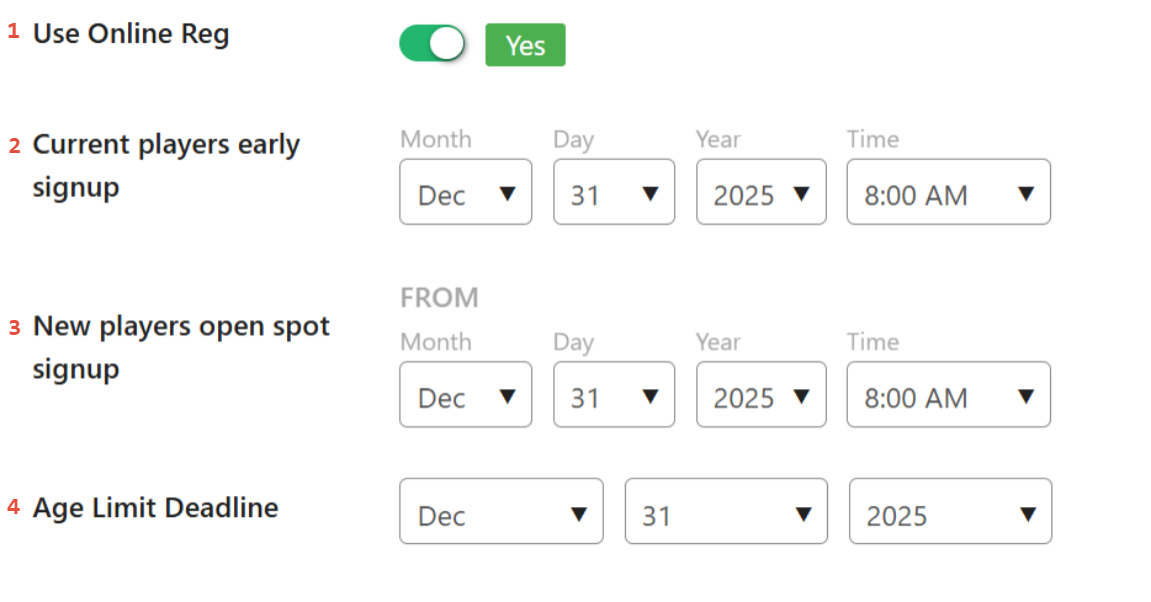
- Use Online Registration –
Set this to Yes - Players will register themselves online.
Set this to No - If the League manager will be registering players and collecting registration fees outside of Pickleball.com. - Current Players Early Signup Date – Allows players from an earlier session to sign up before the general public. This only applies to online registration.
- New Players Open Spot Signup – What is the date that new players will be able to start registering. This only applies to online registration.
- Age Limit Deadline – If this session is only open to a certain age range, what date will be used to calculate the player’s age?
4. Operation Parameters of the Session - Here you will set the parameters that control the operation of the Session
- How players are matched up each game day
- How they move up and down the ladder
- The points played based on the number of players
- What columns will be displayed on the Detail Page
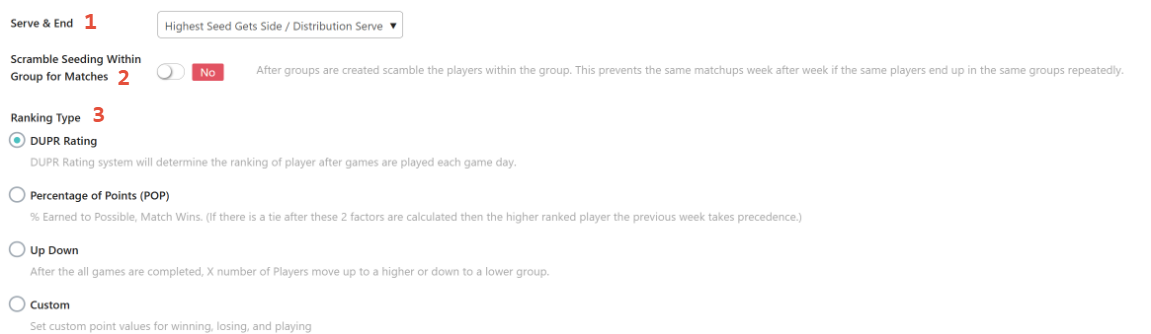
Serve & End - The system can designate the player who chooses serve and end for each game, giving it to the highest seed. Turn this off to allow players to choose.
Scramble Seeding Within Group For Matches - This instructs the system to use different seedings each week to vary the player matchesups within a group. This will prevent the same players from being matched up together every week if they are in the same group. This only applies to groups of 5 or more. If this is selected, the League Manager will not be able to manually move players from one group to another.
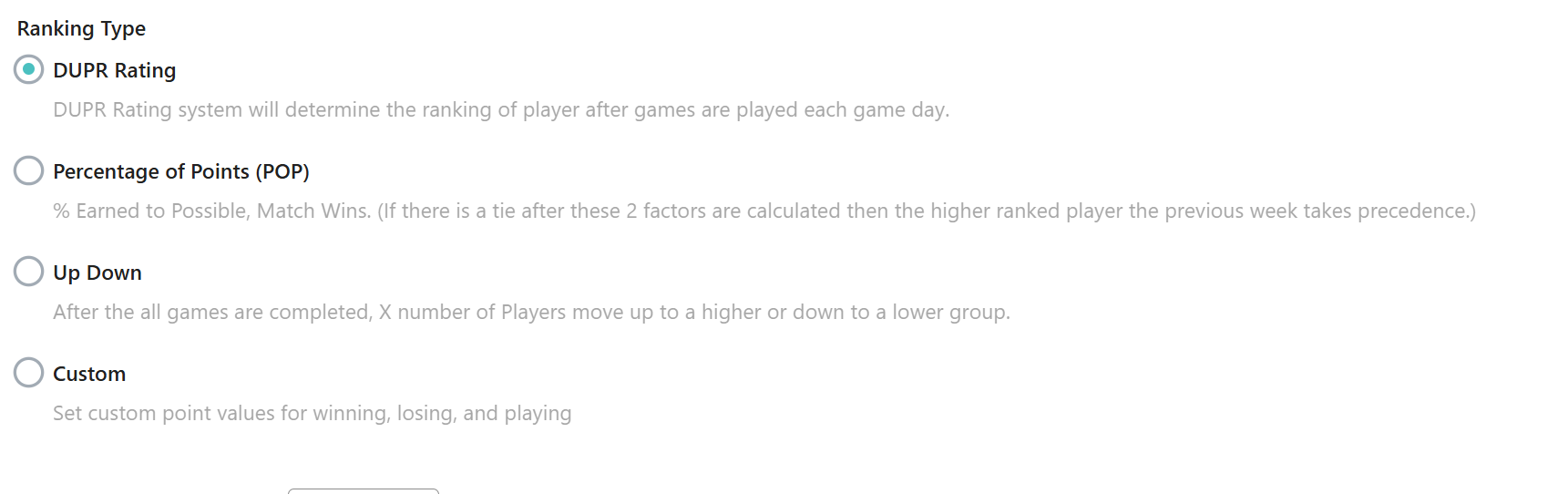
Ranking Type - This determines how players can move up or down on the ladder. The following pages include detailed explanations of each choice.
We will go into more detail for each of these in Ranking Articles
Choose Group Size - Here you will make your first and second choice of group size.
Player Score Formats - You may input format information for groups sizes. You may choose Score Formats for group sizes 4 to 16 players.
- Scores to Use - click on the drop down menu to choose the scoring to be played
- Number of Rounds - click on the drop down tab to pick either single or double rounds
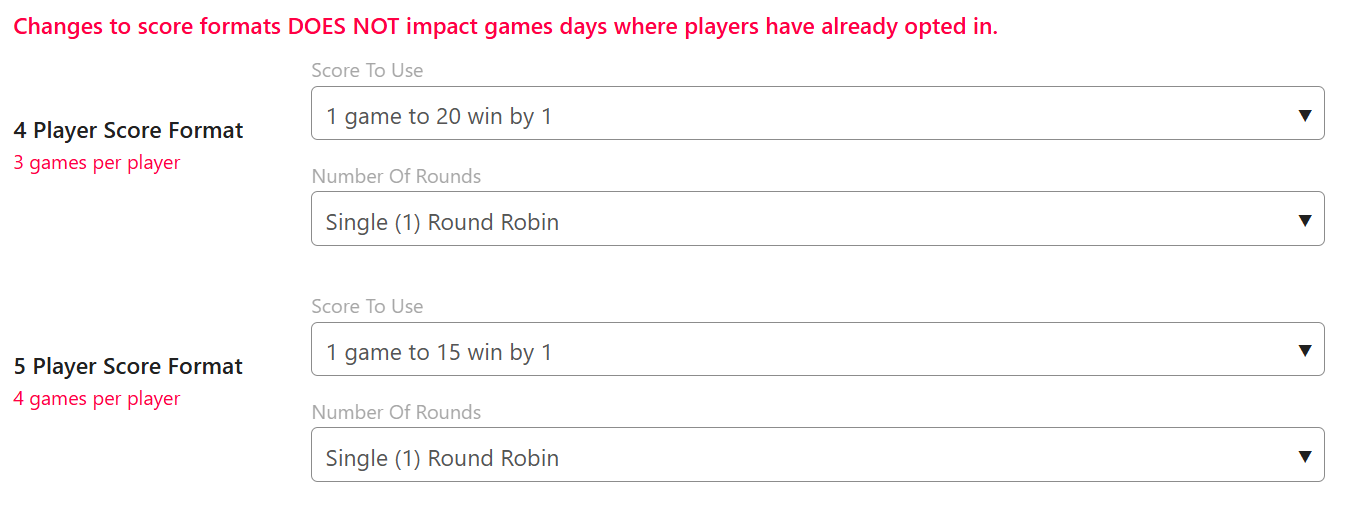
Note: We highly recommend selecting score formats for additional groups sizes in case the software cannot create your first two choices.
PRO TIP: If you have group sizes of 4 and 5 in the same game day, these groups can finish
in about 1.5 hours if you choose the following score formats:
Group of 4 - Double Round Robin, games to 11 win by 2 (each player plays 6 games)
Group of 5 - Single Round Robin, games to 15 win by 1 (each player plays 4 games)
When finished with the choices on this page, click on the Save tab to move on to Scheduling your Game Days
Adding Game Days to a Session - Once the session is configured you can add your game days. Initially, most leagues will add multiple game days that will span the entire session. There is also an option to add individual game days.
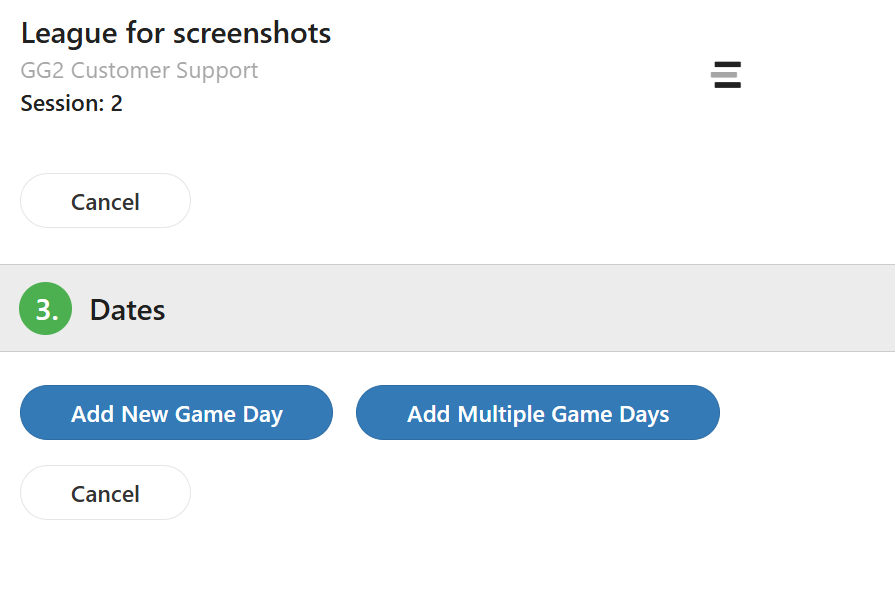
Creating a Single League Game Day - Click on Add New Game Day
Creating Multiple Game Days - Click on Add Multiple Game Days
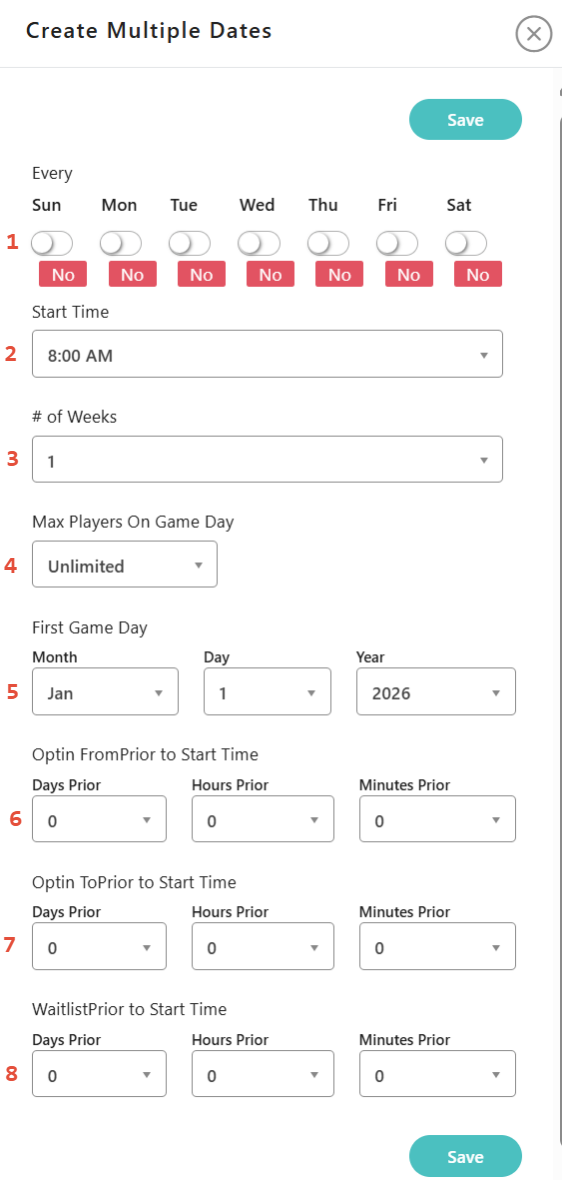
- Click on the Day or Days that you will be meeting in this session.
- Start Time - Click on the drop down to choose the start time for this session
- # of Weeks - Click on the drop down to choose the number of weeks for this session
- Max Players on Game Day - Click on the drop down to choose the maximum players allowed to opt in for a game day. This can be less than the maximum number of players in the league.
If you wish to activate the waiting list option, turn that option on in the session settings. Set this to the maximum number of players you can handle and then create the waiting list final automatic movement time period in #8 below. - First Game Day - Select the first game day
- Optin From Prior to Start Time - Select the amount of time prior to each game day that players can begin to opt in. Players must opt themselves in if they want to play on any gameday.
- Optin To Prior to Start Time - Select the end of the opt in time period.
- Waitlist Prior to Start Time - Select the final time period that waiting list players can be automatically added to the game day. For example, if you want to assure that waiting list players have enough time to change any plans and arrive on time to play, you might want to set this time to at least a few hours prior to the start of each game day.
**Set the maximum number of opt in players to guarantee
court space and time for your playing groups.
**Any session player who tries to opt in after the maximum is reached,
will be prompted to sign up on the waiting list.
Was this article helpful?
That’s Great!
Thank you for your feedback
Sorry! We couldn't be helpful
Thank you for your feedback
Feedback sent
We appreciate your effort and will try to fix the article