Este artículo no está disponible en Spanish (Latin America); accede a la versión en English.
Have another question about creating a league? Click the links below to learn more:

Basic Info
Checkout Options
Discounts
Sponsors
Managers
Session Settings
There are times when a league would like to extend the number of game days in their session. We will cover how to add one more game day or multiple game days.
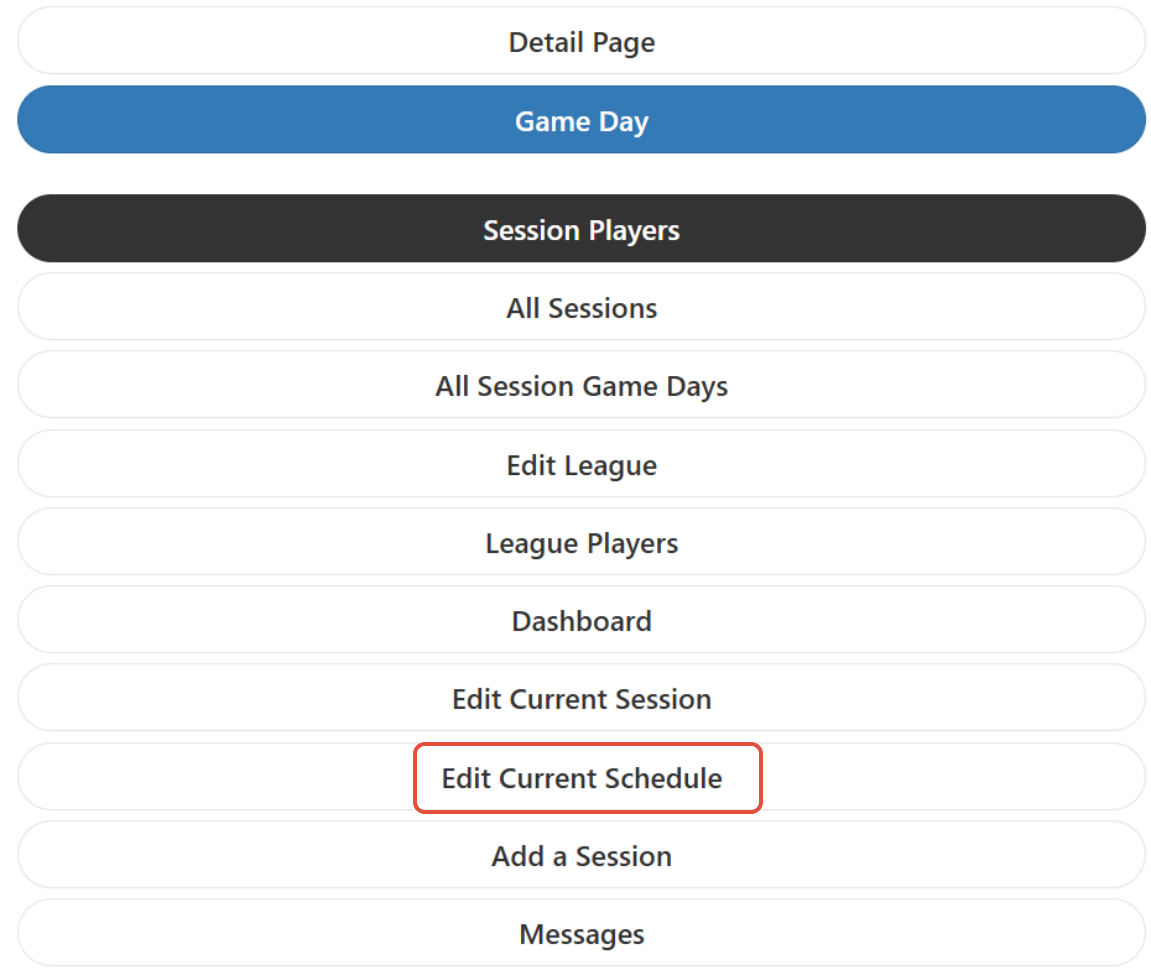
Go to the current session you are wanting to add game days. Click on Edit Current Schedule.
You will have the option to Add a Game Day or Multiple Game Days. 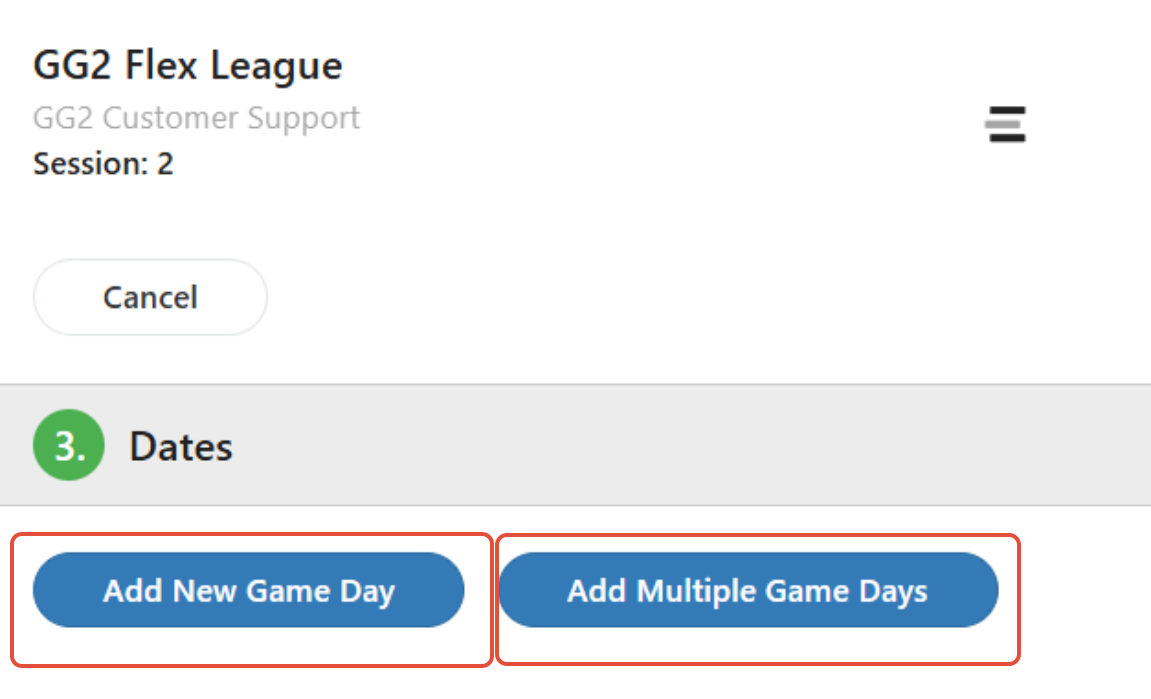
1. Adding just one game day - Click on "Add New Game Day" for adding just one game day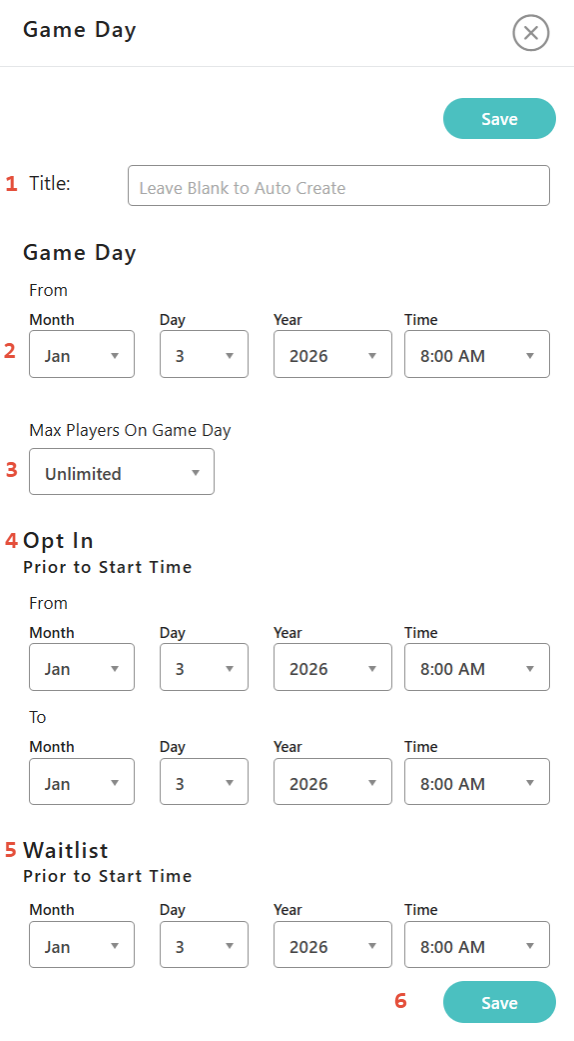
Be sure to fill in each field:
- Title - Enter title of game day (i.e. Week 1, Round 1, etc...) or leave it blank and it will use date as title.
- Game Day - Enter the Date and Time of this game day
- Max Players - If you need to limit the amount of players, select "Max Players On Game Day".
- Opt In - Select the date and time from and to prior to game day for players to opt in
- Waitlist - Select the final time period that waiting list players can be automatically added to the game day.
Note: If you want to assure that waiting list players have enough time to change any plans and arrive on time to play, you might want to set this time to at least a few hours prior to the start of each game day.
If you wish to activate the waiting list option, turn that option on in the session settings. - Save - Click on the Save tab to complete the settings for this game day.
2. Adding Multiple Game Days - Click on "Add Multiple Game Days" 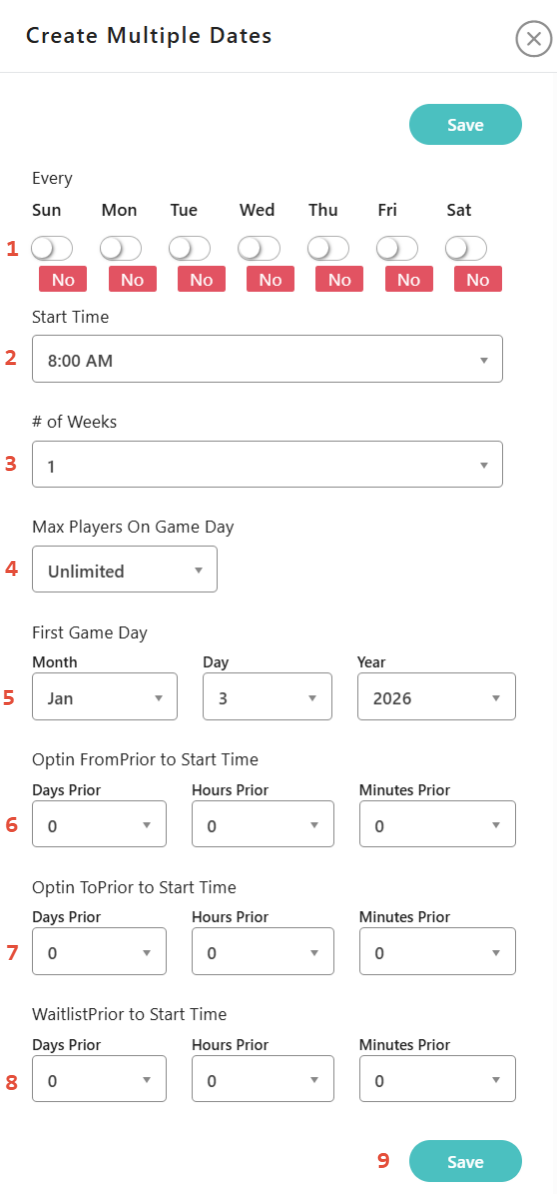
Be sure to fill in each field:
- Day of the week - Choose the day or days of the week for these game days
- Start Time - Enter the Start Time for these game days.
- # of Weeks - Indicate how many additional weeks are you adding to this session.
- Max Players - If you need to limit the amount of players, select "Max Players On Game Day".
- First Game Day - What is the first day of the game days you are adding to session.
- Opt In from Prior to Start Time - Select the date and time from and to prior to game day. This will be the time frame players will be able to RSVP for the game day.
- Opt In To Prior to Start Time - Select the time prior to start of game day a player can opt in.
- Waitlist Prior to Start Time - To activate the waiting list option, turn on in the session settings. Select the final time period that waiting list players can be automatically added to the game day.
Note: If you want to assure that waiting list players have enough time to change any plans and arrive on time to play, you might want to set this time to at least a few hours prior to the start of each game day. - Save - Click on the Save tab to complete the settings for this game day.
Note: You may change these settings before a game day begins. If you cancel a game day, you may edit the day and time by clicking the pen icon, or you can delete the game day by clicking the trash icon.
Was this article helpful?
That’s Great!
Thank you for your feedback
Sorry! We couldn't be helpful
Thank you for your feedback
Feedback sent
We appreciate your effort and will try to fix the article